
Seeing a macOS Sierra installer stop with a message such as “An error occurred while preparing the installation” can be unsettling, especially if the Mac will not boot normally or you are trying to reinstall the system before selling, repairing, or recovering the computer. In most cases, however, this problem is not caused by a permanently damaged Mac. It is usually related to incorrect date settings, an expired installer certificate, a damaged installer, disk problems, or network recovery issues.
TLDR: The fastest fix is to check the Mac’s date and time from Terminal, because macOS Sierra installers often fail when the system clock is wrong or the installer certificate has expired. If that does not work, verify the startup disk with Disk Utility, download a fresh Sierra installer, or create a bootable USB installer. Always back up important data before erasing or reinstalling macOS.
Why macOS Sierra Installation Preparation Errors Happen
macOS Sierra is an older operating system, and that matters. Apple’s installers are signed with security certificates, and several older macOS installers have failed over the years because the certificate validation date no longer matches what the installer expects. If your Mac’s internal clock is incorrect, or if the installer itself is an older copy with an expired certificate, the installation may stop before it even begins.
Common error messages include:
- “An error occurred while preparing the installation. Try running this application again.”
- “This copy of the Install macOS Sierra application is damaged.”
- “macOS could not be installed on your computer.”
- “The installer payload failed signature check.”
Although these messages sound serious, they do not always mean your drive is failing. They simply mean the installer cannot complete its preparation checks.
Before You Start: Protect Your Data
Before attempting repairs, consider whether there is important data on the Mac. Some troubleshooting steps are safe, but others, such as erasing the drive or reinstalling macOS cleanly, can remove files permanently.
If the Mac still boots, make a backup with Time Machine or manually copy important files to an external drive. If the Mac does not boot, you may still be able to recover data using Target Disk Mode, an external boot drive, or professional recovery assistance.
Do not erase the startup disk unless you are certain your files are backed up or no longer needed.
1. Check and Correct the Date and Time
The most common fix for macOS Sierra installation preparation errors is correcting the system date. If the Mac’s clock is set too far in the past or future, the installer may reject its own certificate and fail.
To check the date from macOS Recovery:
- Restart the Mac.
- Immediately hold Command + R until the Apple logo or recovery screen appears.
- From the menu bar, choose Utilities > Terminal.
- Type the following command and press Return:
dateIf the displayed date is clearly wrong, set it manually. The Terminal date format is:
MMDDHHMMYYFor example, to set the date to January 15, 2024, at 10:30 AM, you would type:
date 0115103024Then press Return. After setting the date, quit Terminal and run the installer again.
In some cases, Sierra installers work better when the date is set closer to the period when the installer certificate was valid. If the current date does not work, and you are using an old offline installer, try setting the date to a reasonable date from 2017 or 2018, such as:
date 0101120018This sets the date to January 1, 2018, at 12:00 PM. After installation, macOS can update the time automatically once connected to the internet.
2. Use Network Time if You Have Internet Access
If Wi-Fi or Ethernet is available in Recovery, you can try synchronizing the date automatically. In Terminal, run:
ntpdate -u time.apple.comOn some systems, this command may not be available or may fail due to network limitations. If it works, check the date again by typing:
dateIf the date is now correct, close Terminal and restart the installation.
3. Verify That the Installer Is Not Damaged
If correcting the date does not solve the problem, the macOS Sierra installer itself may be incomplete, modified, or corrupted. This is especially common if the installer was downloaded years ago, copied between drives, or obtained from an unofficial source.
For best results, use an installer downloaded directly from Apple or from a trusted Apple support source. Avoid random download sites. A damaged installer may continue to show preparation errors no matter how many times you restart the process.
If you can boot into another macOS version, delete the old Install macOS Sierra.app from the Applications folder and download a fresh copy. Then try again.
Important: macOS Sierra may not appear normally in the App Store on newer Macs or newer macOS versions. Apple has special support pages for older macOS downloads, and availability can vary depending on hardware compatibility.
4. Confirm That Your Mac Supports macOS Sierra
Installation can fail if the Mac is not compatible with Sierra. macOS Sierra generally supports many Macs from late 2009 and later, plus several 2010 and newer models, but compatibility depends on the exact machine.
To identify your Mac, click Apple menu > About This Mac if the system boots. If it does not boot, check the model number on the underside of the MacBook, the bottom of the Mac mini, or the rear of the iMac, then compare it with Apple’s compatibility information.
Trying to install Sierra on unsupported hardware can produce confusing errors that resemble installer corruption or disk failure.
5. Run Disk Utility First Aid
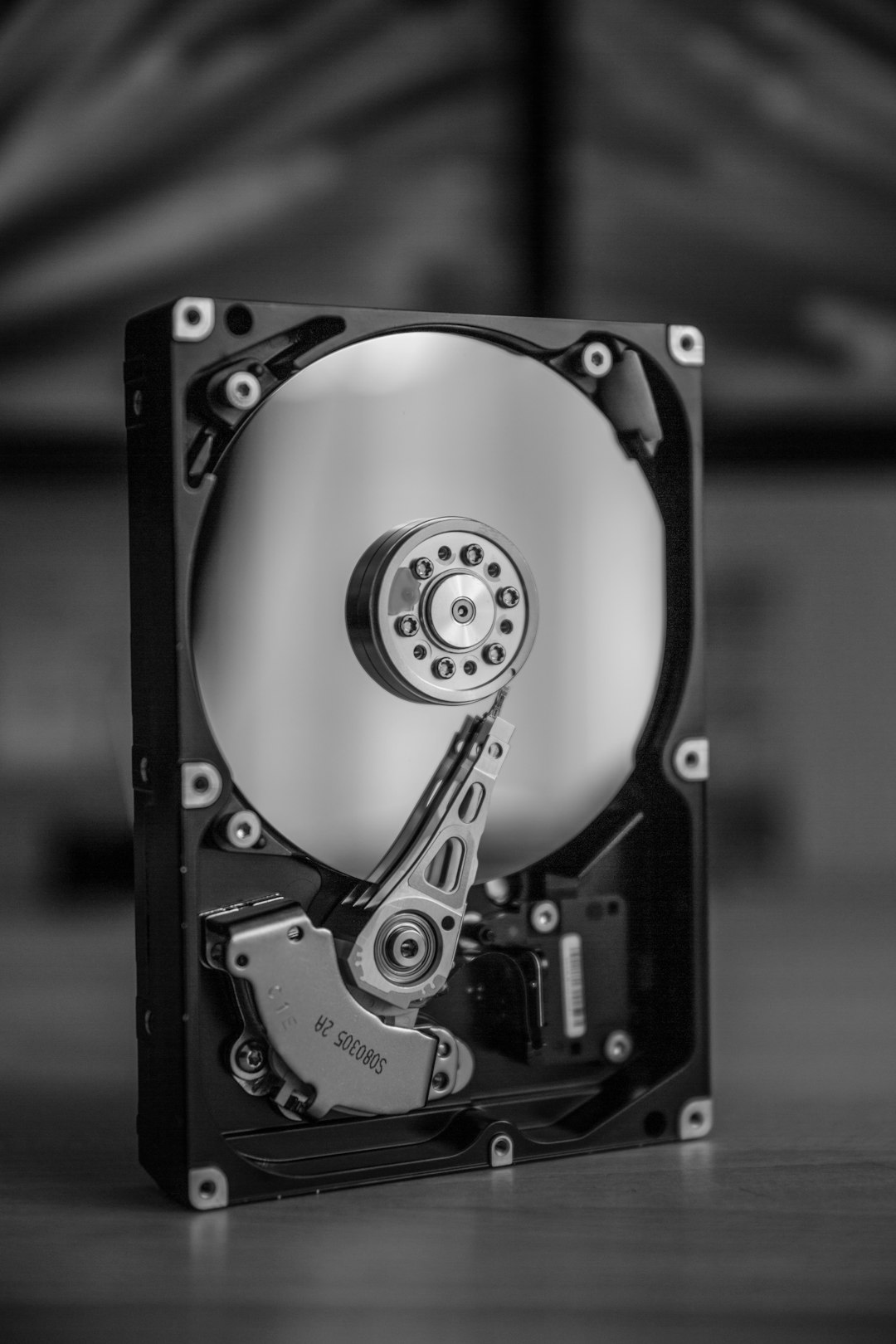
If the date and installer are both fine, the problem may be with the startup disk. File system errors, partition map issues, or failing storage can prevent macOS from preparing installation files.
To check the disk:
- Restart into Recovery with Command + R.
- Open Disk Utility.
- Choose View > Show All Devices, if available.
- Select the internal drive or the startup volume.
- Click First Aid.
- Allow Disk Utility to repair any detected problems.
If First Aid reports that repairs were successful, try the Sierra installer again. If First Aid reports that the disk cannot be repaired, back up your data immediately if possible. A clean erase may be required, and in some cases the drive may need replacement.
6. Make Sure the Disk Format Is Suitable
macOS Sierra typically installs on a disk formatted as Mac OS Extended Journaled with a GUID Partition Map. Sierra introduced early APFS support in limited contexts, but for a standard Sierra installation, especially on older Macs or hard drives, Mac OS Extended is usually the safer choice.
If you are performing a clean installation and have already backed up your files, you can erase the disk properly:
- Boot into Recovery.
- Open Disk Utility.
- Select the physical internal drive, not only the volume beneath it.
- Click Erase.
- Choose Mac OS Extended Journaled.
- Choose GUID Partition Map as the scheme.
- Confirm the erase.
After erasing, quit Disk Utility and start the macOS installation again. Remember that this removes all data from the selected drive.
7. Reset NVRAM or PRAM
NVRAM stores certain startup and hardware settings, including information related to startup disk selection, display settings, and time-related parameters. Resetting it is simple and can help when the installer behaves inconsistently.
To reset NVRAM:
- Shut down the Mac.
- Turn it on and immediately hold Option + Command + P + R.
- Keep holding the keys for about 20 seconds.
- Release the keys and allow the Mac to continue starting.
After resetting NVRAM, return to Recovery or the installer and try again. You may need to reselect the startup disk afterward.
8. Try Internet Recovery
If the local recovery partition is damaged or the installed recovery system is unreliable, Internet Recovery may help. It downloads recovery tools from Apple’s servers instead of relying entirely on the Mac’s internal drive.
Start Internet Recovery by restarting and holding:
- Option + Command + R to try installing the latest macOS compatible with your Mac.
- Shift + Option + Command + R to try installing the macOS version that came with the Mac, or the closest version still available.
Internet Recovery requires a stable internet connection. Ethernet is preferable if available. If Wi-Fi is weak, the installation may fail during preparation or download.
9. Create a Bootable macOS Sierra USB Installer
If repeated attempts fail, a bootable USB installer can be more reliable than running the installer from a damaged system or recovery partition. You will need a working Mac, a compatible Sierra installer, and a USB drive of at least 12 GB.
After downloading Install macOS Sierra.app, connect the USB drive and use Apple’s createinstallmedia command from Terminal. The exact command depends on the installer name and USB volume name, but it commonly resembles:
sudo /Applications/Install\ macOS\ Sierra.app/Contents/Resources/createinstallmedia --volume /Volumes/MyUSB --applicationpath /Applications/Install\ macOS\ Sierra.appReplace MyUSB with the actual name of your USB drive. This process erases the USB drive.
To boot from it:
- Insert the USB installer into the Mac.
- Restart and hold Option.
- Select the macOS Sierra installer volume.
- Use Disk Utility if needed, then install macOS.
10. Check for Hardware Problems
If every software fix fails, consider hardware. Older Macs may have failing hard drives, defective SATA cables, bad memory, or unstable logic board components. Installation preparation is disk-intensive, so weak storage can reveal itself during this stage.
You can run Apple Diagnostics by restarting the Mac and holding D. On some older Macs, you may need the original installation media or Internet Diagnostics. If diagnostics reports a storage or memory issue, resolve the hardware problem before attempting another installation.
When a Clean Installation Is the Best Option
A clean installation is often the most reliable solution when the current system is badly damaged, the disk has been repaired, and you have a verified backup. It removes old system files, broken caches, and conflicting installer remnants. However, it should be treated as a final step, not the first response.
Use a clean installation when:
- You have already backed up your data.
- Disk Utility First Aid has completed successfully or the disk has been replaced.
- The installer is known to be genuine and complete.
- Date and certificate-related fixes have failed.
Final Guidance
macOS Sierra installation preparation errors are frustrating, but they are usually fixable with a careful process. Start with the simplest and most common cause: the system date. Then confirm the installer is valid, check the disk, reset NVRAM, and consider using Internet Recovery or a bootable USB installer.
If the Mac contains important files, prioritize backup and recovery before erasing anything. If installation errors continue after date correction, disk repair, and a fresh installer, the issue may be hardware-related. A methodical approach will help you avoid unnecessary data loss and identify whether the problem is with the installer, the drive, or the Mac itself.