Use Canva if you need a polished screenshot in minutes; use Figma if you need precision, reusable layouts, or team review. For most quick edits, Canva is faster because its templates, text styles, arrows, shapes, and export options are built for non-designers. Figma is stronger when the screenshot must fit into a product mockup, help doc system, or shared design file.
TLDR: Canva is the better pick for quick screenshot editing when speed matters more than pixel control. Figma is better when accuracy, alignment, shared components, and repeatable layouts matter. For example, a support manager editing 15 help center screenshots may finish around 25% faster in Canva, while a product designer preparing release visuals may save time in Figma by reusing frames, labels, and components. If the task is “add a callout and export,” choose Canva; if the task is “match our product design system,” choose Figma.
Canva vs Figma: the short answer
Canva and Figma can both edit screenshots. They simply serve different users.
- Canva is best for fast annotations, social posts, thumbnails, training slides, and customer-facing visual guides.
- Figma is best for product teams, UX writers, designers, and anyone who needs exact spacing, layout control, and shared design assets.
If your screenshot needs arrows, circles, blurred sections, labels, and a clean export, Canva will usually feel smoother. If your screenshot needs to sit inside a prototype, match a UI kit, or be reviewed by several teammates, Figma is the safer choice.
What Canva does well for screenshot editing
Canva is built around speed. You upload a screenshot, drop it onto a canvas, and start adding annotations. The interface is friendly. The controls are visible. You do not need much design knowledge.
For quick image editing, Canva handles the common jobs well:
- Adding arrows, circles, boxes, and highlights
- Placing readable text labels over screenshots
- Blurring or covering sensitive information
- Resizing images for blog posts, slides, emails, or social channels
- Using templates for tutorials, checklists, or product tips
This matters when the screenshot is part of a practical workflow. A marketer may need to explain a feature. A trainer may need to mark where users should click. A founder may need to show a bug in a report. Canva keeps those tasks simple.
The frustrating part is that Canva can feel a little too template-driven. Fine alignment is possible, but it is not as precise as Figma. If you are moving small labels by a few pixels, Canva can make you feel like you are nudging furniture across a carpet. It works, but it is not always elegant.
What Figma does well for screenshot editing
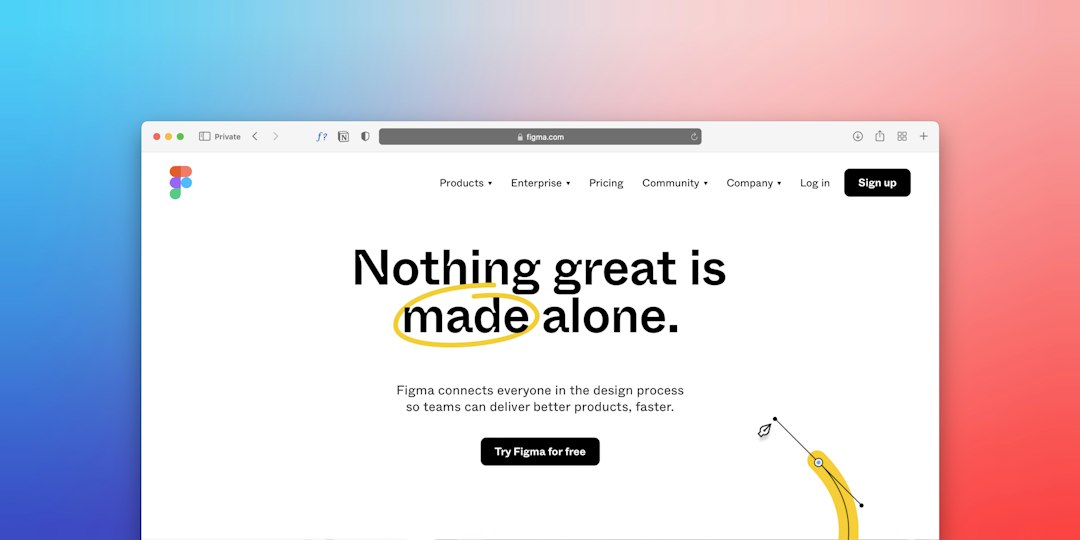
Figma is not mainly an image editor. It is a design and interface tool. That makes it very good for structured screenshot work.
Figma shines when you need control over:
- Exact positioning of callouts, boxes, and labels
- Consistent spacing between screenshots and text
- Reusable annotation components
- Team comments and review threads
- Multiple screen sizes in one file
- Exporting organized assets for docs or product pages
For example, a product team can create one Figma file for all release notes. Each screenshot can sit inside a frame. Labels, arrows, device mockups, and captions can be reused. That reduces messy one-off edits and keeps the final images consistent.
Honestly, it feels like overkill when all you need is one arrow and one sentence of text. Opening Figma, setting up a frame, importing the screenshot, and exporting the final image can take longer than the edit itself. For a single support article image, that extra setup may not be worth it.
Speed: Canva is usually faster
For one-off screenshot edits, Canva usually wins on speed. The tool is made for quick visual production. Its templates and drag-and-drop controls reduce the number of decisions you need to make.
A simple Canva workflow looks like this:
- Upload the screenshot.
- Choose a design size.
- Add arrows, text, shapes, or blur effects.
- Export as PNG, JPG, or PDF.
A simple Figma workflow usually has more setup:
- Create or open a file.
- Create a frame.
- Import the screenshot.
- Add shapes, text, and components.
- Adjust layout and export settings.
That difference is small for designers. It is bigger for everyone else. If a sales manager edits screenshots once a week, Canva is the easier path.
Precision: Figma is better
Figma wins on precision. Its alignment tools, layers, frames, grids, and component system make it excellent for controlled layouts.
This is useful when screenshots appear in:
- Product documentation
- Design handoff files
- Release announcements
- Investor decks with strict visual standards
- UI comparison reports
Figma also handles multi-screen projects better. If you need to show desktop, tablet, and mobile screenshots side by side, Figma gives you a cleaner workspace. You can name layers, group assets, and maintain order across dozens of images.
Text, arrows, and callouts
Both tools can add text and arrows. Canva makes this easier for casual users. You can pick ready-made arrow styles, speech bubbles, stickers, and highlight shapes. The results look presentable with little effort.
Figma gives you more control over callout systems. You can create one label style and reuse it across every screenshot. You can define colors, type sizes, corner radius, and spacing. This is useful for companies that want every help article to look consistent.
If the screenshot is for a quick Slack message or customer email, use Canva. If the screenshot is part of an official product guide, Figma may be better.
Blurring and hiding sensitive data
Screenshots often contain private information. Names, emails, account numbers, internal URLs, and customer data should be hidden before sharing.
Canva can blur or cover sensitive areas quickly. You can add a rectangle over private content, match the background, or use blur effects depending on the image. This is enough for most public-facing screenshots.
Figma can also cover private data, but it does not feel as direct for quick redaction. You can place shapes over sensitive areas and lock them in place. That is reliable, but not always fast.
Security tip: covering text with a solid shape is safer than using a light blur. Weak blur can sometimes be guessed, especially with short words or visible patterns.
Export quality and file formats
Canva offers simple export choices. PNG, JPG, and PDF are easy to find. This is helpful when you need a final image for email, social media, a blog post, or a presentation.
Figma offers stronger export control. You can export at 1x, 2x, or higher scales. You can export selected frames or assets. This is useful for product images that must stay sharp on high-resolution screens.
For most screenshot edits, PNG is the best option. It keeps text crisp. JPG can reduce file size, but it may make small UI text look fuzzy. Use JPG only when file size matters more than sharpness.
Collaboration and approvals
Figma is stronger for serious team review. Comments, shared files, version history, and inspect tools are built for collaboration. A designer, product manager, and technical writer can work in the same file and leave comments on exact spots.
Canva supports collaboration too, but it is more focused on content creation and approval. It works well for marketing teams and training teams. It is less ideal for detailed product design review.
If approval requires exact comments like “move this label 8 pixels left,” use Figma. If approval means “does this tutorial image look clear enough,” Canva is fine.
Which one should you choose?
Choose Canva when:
- You need a screenshot edited in under 10 minutes.
- You are making tutorials, posts, slides, or customer emails.
- You want polished visuals without building a design system.
- You do not edit screenshots every day.
Choose Figma when:
- You need pixel-level control.
- You work with a product or design team.
- You reuse screenshot layouts often.
- You need consistent callouts across many images.
Final recommendation
For quick screenshot editing, Canva is the practical default. It is faster, easier, and more forgiving for everyday work. It helps non-designers produce clean images without getting stuck in layout details.
Figma is the better professional workspace when screenshots are part of a larger design process. It rewards teams that care about consistency and precision. The best choice comes down to the job: quick communication belongs in Canva; structured product visuals belong in Figma.