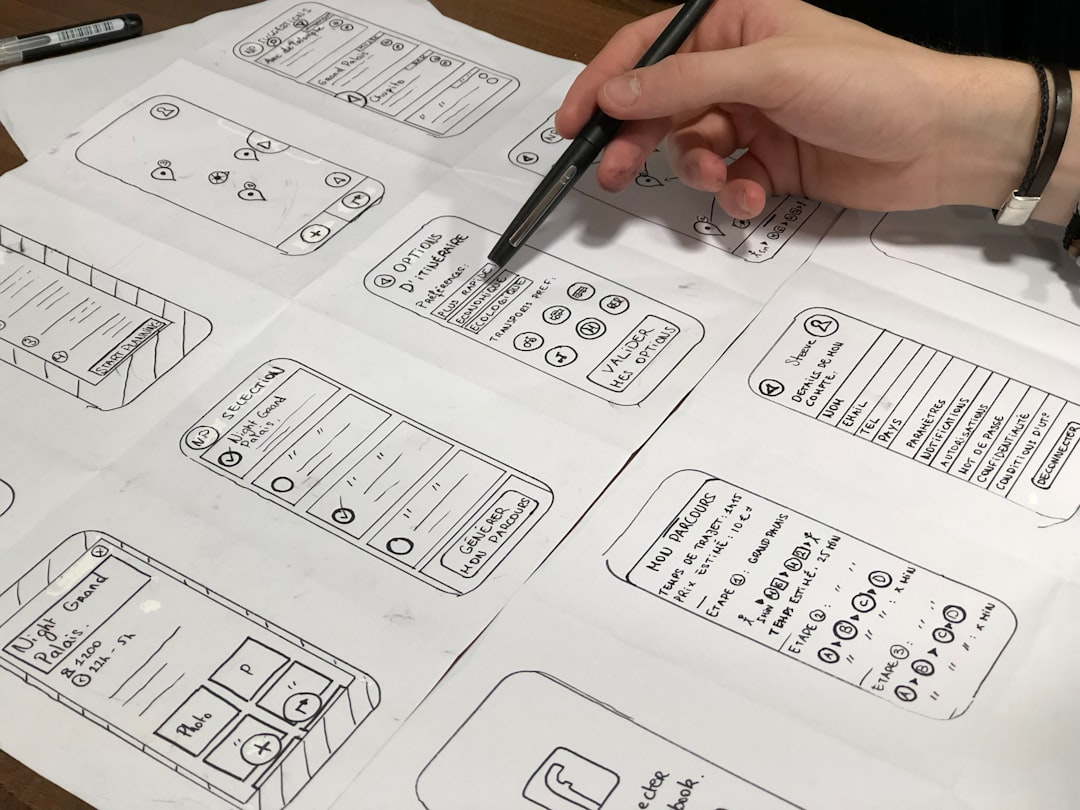
For most screen and UI analysis tasks, ChatGPT is the better general-purpose choice, while Claude often wins when you need careful written critique and long-form reasoning. If you are checking a broken dashboard, reviewing a mobile checkout flow, or asking why a landing page feels confusing, ChatGPT tends to be faster and more practical. Claude is excellent when the screenshot is part of a bigger product brief, UX report, or accessibility review.
TLDR: ChatGPT is usually stronger for quick screen reading, visual debugging, and step-by-step UI feedback, while Claude is better for thoughtful UX critique and longer explanations. For example, a product manager reviewing 25 onboarding screenshots might use ChatGPT to identify layout issues in minutes, then use Claude to turn those findings into a polished UX report. In a simple team workflow, this can cut first-pass review time by 40% to 60%, especially when compared with manual screenshot notes in spreadsheets. If you only want one tool, pick ChatGPT for speed and practical screen analysis.
What “ChatGPT Screen” really means
ChatGPT Screen is not just about uploading a screenshot and asking, “What do you see?” It refers to using AI to inspect screens, understand interface states, explain visual problems, and suggest improvements. This can include web pages, mobile apps, dashboards, forms, modals, charts, error messages, and design mockups.
The best use cases are very practical:
- UI review: “What feels confusing on this pricing page?”
- Bug triage: “Why might users miss this error message?”
- Accessibility checks: “Is the contrast likely too low?”
- Conversion feedback: “Where would a user click first?”
- Design QA: “Does this screen match the intended layout?”
It drives me crazy that teams still pass around giant folders of screenshots with notes like “button looks weird.” AI screen analysis gives those notes structure. It can spot patterns, compare states, and turn vague visual feedback into specific next steps.
ChatGPT for screen and UI analysis
ChatGPT is strong when you need quick, actionable feedback from a screenshot. It tends to describe what is visible, point out likely friction, and suggest fixes in a clear order. For product teams, that matters. Nobody wants a poetic essay when a checkout button is buried below the fold.
Its biggest strength is task-oriented visual reasoning. You can ask it to inspect a screen like a QA tester, a UX researcher, a conversion specialist, or a first-time user. That role-based prompting is useful because the same screen can have different problems depending on the goal.
For example, upload a SaaS dashboard screenshot and ask:
- “List the top five comprehension issues.”
- “What would a new user misunderstand?”
- “Which elements compete for attention?”
- “Rewrite the empty state message.”
- “Create QA notes for the design team.”
ChatGPT usually handles these requests well. It is also good at turning visual findings into checklists, tickets, or test cases. That makes it handy for product managers, founders, designers, marketers, and support teams.
The catch is that it can sound too confident. If text in a screenshot is tiny, cropped, or blurry, ChatGPT may still infer what it thinks is there. You need to ask it to separate visible facts from assumptions. That one prompt can save a lot of cleanup.
Claude for screen and UI analysis
Claude is especially good at written analysis. If you want a slower, more reflective critique of a user flow, it can be impressive. It often explains why a design choice may confuse users, how tone affects trust, and where cognitive load increases.
Claude can be a strong option for:
- UX audits with detailed recommendations
- Long product documents that include screenshot references
- Accessibility commentary written for stakeholders
- Heuristic reviews based on usability principles
- Comparing multiple screens within a larger flow
Honestly, it feels like Claude is often better when the screenshot is only one part of the job. If you also have customer complaints, analytics notes, release notes, and design goals, Claude can connect those pieces into a coherent review.
Where it may lose ground is speed and directness. For quick interface triage, you may get more explanation than you need. That is not always bad. But when a developer asks, “What needs fixing?” a long answer can be annoying.
Head-to-head comparison
Here is the practical split.
- Best for fast screenshot feedback: ChatGPT
- Best for polished UX reports: Claude
- Best for visual QA checklists: ChatGPT
- Best for long context reviews: Claude
- Best for marketing page critique: Tie, with ChatGPT slightly ahead for quick fixes
- Best for accessibility discussion: Claude for explanation, ChatGPT for task lists
- Best for bug reproduction notes: ChatGPT
ChatGPT feels more like a sharp product assistant. Claude feels more like a thoughtful UX writer or researcher. That difference matters because screen analysis is not one job. Sometimes you need diagnosis. Sometimes you need a memo. Sometimes you need a Jira-ready ticket.
Where ChatGPT shines
ChatGPT is especially useful when you need output that can be used right away. Give it a screenshot of a sign-up page and ask for a conversion review. It may flag weak hierarchy, unclear CTA copy, too many fields, poor spacing, or hidden trust signals.
It can also convert feedback into formats your team already uses:
- Bug ticket: title, severity, steps, expected result, actual result
- UX checklist: issue, impact, suggested fix
- Developer note: component, behavior, acceptance criteria
- Stakeholder summary: problem, risk, next action
This is where ChatGPT becomes more than a visual description tool. It acts like a screen analyst that can move from observation to execution.
Where Claude shines
Claude is excellent when tone, user psychology, and written clarity matter. It can explain how a screen may feel to a nervous user, a distracted buyer, or a first-time admin. That is useful for finance, healthcare, education, and enterprise software, where trust can make or break the experience.
Claude also tends to be strong at summarizing many findings into a readable narrative. If you have ten screens from an onboarding flow, it can produce a clear review with themes such as “unclear progress,” “weak confirmation,” or “too much setup before value.”
Best prompts for better results
The tool matters, but the prompt matters more than people admit. Weak prompts produce generic feedback. Strong prompts force the model to inspect the screen with a clear job in mind.
Try these:
- “Analyze this screen as a first-time user. List the top five points of confusion.”
- “Separate visible facts from assumptions. Do not guess hidden text.”
- “Create a table with issue, evidence, severity, and recommended fix.”
- “Review this checkout page for conversion friction.”
- “Act as a QA tester. Write bug tickets based only on what is visible.”
- “Compare these two screens and identify layout inconsistencies.”
For tiny text, zoom in before uploading. For long pages, capture sections instead of one huge image. Expect to waste time if you upload a blurry full-page screenshot and ask for precise feedback. The model can only analyze what it can see.
Privacy and accuracy concerns
Screen analysis can expose sensitive information. Before uploading screenshots, remove names, emails, account IDs, payment data, health details, and private customer messages. This is especially critical for internal dashboards and admin panels.
Accuracy also needs a human check. AI may miss subtle interaction problems because it cannot always test the interface. It sees the screen, but it may not know what happens after a click, hover, scroll, or validation error. Use it for first-pass review, not final approval.
Which one should you choose?
Choose ChatGPT if you want fast screen understanding, UI fixes, QA notes, and practical product feedback. It is the stronger daily tool for founders, designers, developers, marketers, and support teams who need answers quickly.
Choose Claude if you want deeper written critique, long-form UX reasoning, and polished summaries for stakeholders. It is a strong companion for researchers, UX writers, and product leads working with larger sets of context.
The smartest workflow may use both. Start with ChatGPT to extract issues from screenshots. Then use Claude to shape the findings into a thoughtful report. If you only have budget or patience for one, start with ChatGPT. It gets you from screen to action with less friction.