Instagram login is usually a quick process, but occasionally a user may see a vague message such as “An unexpected error occurred” or “Please try again later” during a login attempt. This kind of error can be frustrating because it does not always explain whether the issue is caused by the app, the device, the account, the internet connection, or Instagram’s own servers. Understanding the most common causes can help a user troubleshoot the problem more confidently and avoid unnecessary account changes.
TLDR: Instagram may show an unexpected error during login because of server outages, app glitches, poor internet connectivity, outdated software, suspicious account activity, or corrupted cache data. In many cases, restarting the app, checking the connection, updating Instagram, or clearing the cache can resolve the issue. If the problem is account-related, the user may need to verify identity, reset the password, or wait until Instagram lifts temporary restrictions.
What Does “Unexpected Error” Mean on Instagram?
The phrase “unexpected error” is a general message Instagram uses when something interrupts the login process but the app cannot provide a more specific explanation. It may appear after a user enters a username and password, attempts to log in through Facebook, uses two-factor authentication, or switches between accounts.
In many cases, the message does not mean the account has been permanently disabled or hacked. Instead, it often indicates that Instagram failed to complete one part of the login request. That failure may happen because the app cannot communicate properly with Instagram’s servers, the account requires additional verification, or the device is holding outdated login data.
Because the message is broad, the best approach is to examine the likely causes one by one. A user can usually identify whether the issue is temporary, device-specific, network-related, or tied to account security.
Common Reasons Instagram Shows an Unexpected Error
1. Instagram Server Problems
One of the most common reasons for login errors is a problem on Instagram’s side. Like any large online platform, Instagram occasionally experiences server outages, maintenance issues, or disruptions that affect login systems. When this happens, the error may appear even if the user enters the correct username and password.
Server-related problems often affect many people at once. A user may notice that friends are also unable to log in, feeds are not loading, stories are not posting, or direct messages are delayed. In such cases, there is usually nothing wrong with the individual account or device.
The best response is to wait and try again later. Repeated login attempts during a server outage may not help and could sometimes trigger additional security checks.
2. Weak or Unstable Internet Connection
Instagram requires a stable connection to verify login credentials and load account data. If the connection is weak, slow, or constantly switching between Wi-Fi and mobile data, the app may fail to complete the login request and show an unexpected error.
This can happen in crowded public Wi-Fi networks, areas with poor mobile coverage, or networks that block certain app traffic. A user may also experience the problem if the router is overloaded or if a VPN is interfering with the connection.
To test this, the user can switch from Wi-Fi to mobile data, restart the router, disable the VPN temporarily, or move to a stronger signal area. If Instagram works on one network but not another, the problem is likely related to connectivity.
3. Outdated Instagram App
An outdated version of Instagram may not communicate properly with the platform’s current login systems. App updates often include security improvements, bug fixes, and compatibility changes. If a user continues using an older version, certain login features may fail unexpectedly.
Updating the app through the device’s official app store is one of the simplest fixes. After updating, the user should close Instagram completely and reopen it. In some cases, restarting the device after the update can also help clear temporary system issues.
4. Corrupted Cache or Temporary App Data
Instagram stores temporary data on the device to make the app load faster. This data includes images, session files, preferences, and login-related information. Over time, some of this cache can become corrupted or outdated, causing login problems.
On Android devices, users can often clear the Instagram cache through the device settings. On iPhones, clearing cache usually requires deleting and reinstalling the app. Reinstalling Instagram gives the app a fresh start and removes damaged temporary files that may be interfering with login.
- Android: Settings > Apps > Instagram > Storage > Clear Cache.
- iPhone: Delete Instagram, restart the phone, then reinstall it from the App Store.
- Web browser: Clear cookies and cached files, then try logging in again.
5. Incorrect Login Details or Saved Password Problems
Sometimes the error appears because the login details are incorrect, even if the user believes they are right. Saved passwords may be outdated, especially if the user changed the password on another device. Autofill tools may also enter an old username, email address, or password without the user noticing.
If there is any doubt, the user should manually type the password instead of relying on autofill. If login still fails, resetting the password through Instagram’s official password recovery process may resolve the issue. It is important to use the correct email address, phone number, or username associated with the account.
6. Two-Factor Authentication Issues
Two-factor authentication adds an extra layer of protection, but it can also create login complications. If a user cannot receive a code by text message, has lost access to an authentication app, or is using old backup codes, Instagram may not complete the login process.
In some situations, the app may show an unexpected error instead of a clear two-factor authentication message. This is more likely when the verification request times out or when the device’s time settings are incorrect.
A user should check that the device time and date are set automatically, request a new code, and try backup codes if available. If access to the authentication method has been lost, account recovery may be necessary.
7. Suspicious Login Activity
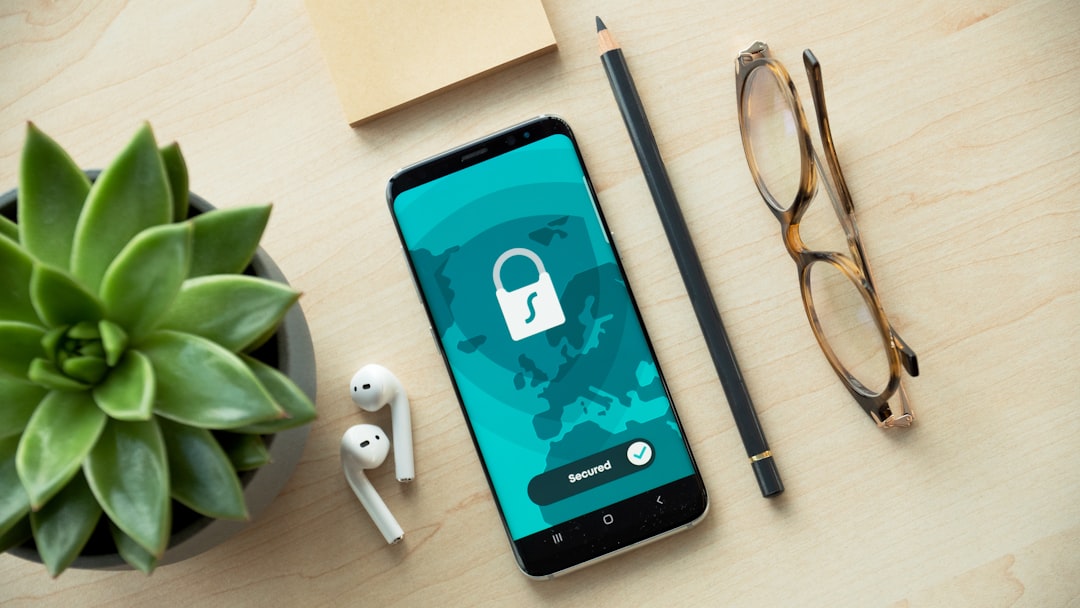
Instagram may block or delay login attempts if it detects suspicious behavior. This can include logging in from a new country, using a VPN, attempting too many logins in a short period, or switching between multiple accounts rapidly. The platform uses automated security systems to prevent hacking, spam, and unauthorized access.
When Instagram sees unusual activity, it may ask for identity verification, send a security email, request a code, or temporarily restrict login. Sometimes, however, the user only sees an unexpected error message.
If suspicious activity is the cause, the user should avoid repeated login attempts for a while. It may help to log in from a familiar device and location, turn off VPN services, and check the email account linked to Instagram for security alerts.
8. Device or Operating System Compatibility Problems
Older phones or outdated operating systems may have trouble running the latest version of Instagram. As the app evolves, it may rely on newer system features that are not fully supported on older devices. This can lead to crashes, login loops, or unexplained errors.
The user should check whether the device operating system has available updates. If the phone can no longer support current app versions, using Instagram through a web browser may be a temporary alternative.
9. VPN, Proxy, or Network Restrictions
VPNs and proxies can help protect privacy, but they may also cause Instagram to flag a login attempt as unusual. If the IP address changes frequently or appears to come from a region far away from the user’s typical location, Instagram may block the login request.
Similarly, school, office, hotel, and public networks may restrict social media traffic. These restrictions can prevent Instagram from connecting properly, resulting in a generic error.
Disabling the VPN or trying a different network can help determine whether this is the problem. If Instagram works normally after the VPN is turned off, the user has likely found the cause.
How a User Can Fix the Instagram Unexpected Login Error
Because the error can have several causes, the user should follow a structured troubleshooting process. Jumping immediately to password resets or account recovery may not be necessary if the issue is only a temporary app or network problem.
- Check whether Instagram is down: If many users are reporting problems, waiting is usually the best option.
- Restart the app: Closing Instagram completely and reopening it can clear minor glitches.
- Restart the device: A simple reboot can refresh system processes and network connections.
- Switch networks: The user can try mobile data instead of Wi-Fi, or another Wi-Fi connection.
- Update Instagram: Installing the latest version can fix bugs and compatibility issues.
- Clear cache or reinstall: Removing temporary data can resolve corrupted app files.
- Disable VPN or proxy: Logging in without location-masking tools may prevent security flags.
- Reset the password: If credentials may be wrong, a password reset is a safe next step.
- Try another device or browser: This helps determine whether the issue is device-specific.
- Wait before trying again: Too many attempts can trigger temporary restrictions.
When the Error May Be Account-Related
Sometimes the issue is not the device or the internet connection but the account itself. Instagram may require verification if it detects unusual activity, receives reports, or suspects automated behavior. This can happen even to legitimate users.
Signs that the issue may be account-related include security emails from Instagram, prompts to confirm identity, repeated code requests, or the inability to log in from any device. If the account was recently accessed from an unfamiliar location, Instagram may temporarily block login until the user confirms ownership.
In this situation, the user should carefully follow Instagram’s official recovery steps. It is also wise to check the associated email account for messages about password changes, suspicious login attempts, or security confirmations.
How to Prevent Future Login Errors
Although not every login error can be prevented, several habits can reduce the chances of seeing unexpected error messages in the future.
- Keep the app updated so it remains compatible with Instagram’s latest systems.
- Use a stable internet connection when logging in, especially after password changes.
- Avoid excessive login attempts because repeated failures may trigger security checks.
- Save backup codes if two-factor authentication is enabled.
- Keep account recovery information current, including email address and phone number.
- Be cautious with third-party apps that request Instagram login access.
- Use strong, unique passwords to reduce the risk of suspicious activity.
Users should also avoid entering Instagram credentials into unofficial websites or apps. Some third-party services imitate Instagram login pages and can compromise an account. If an account is compromised, login errors may appear because the password, email address, or security settings have been changed by someone else.
Why the Error Message Is So Vague
Many users wonder why Instagram does not simply explain the exact cause. In some cases, the platform may avoid giving detailed error information for security reasons. If attackers knew precisely why a login attempt failed, they could use that information to bypass protections or test stolen credentials more effectively.
Another reason is technical complexity. Login depends on multiple systems working together, including authentication servers, device data, security checks, network requests, and account status. If one part fails unexpectedly, the app may display a general message instead of a detailed diagnosis.
While this vagueness is inconvenient, it is common among large platforms that must balance usability, privacy, and account security.
FAQ
Why does Instagram say “unexpected error” when the password is correct?
Instagram may show this message even with the correct password if there is a server issue, unstable internet connection, corrupted app cache, VPN conflict, or account security check. The password is only one part of the login process.
Does an unexpected login error mean the account is banned?
Not necessarily. The error often comes from temporary technical or security issues. However, if the account has violated platform rules or requires verification, Instagram may restrict access until the issue is resolved.
Can clearing the cache fix the login error?
Yes. Clearing the cache can help if corrupted temporary files are interfering with the login process. Android users can usually clear cache in settings, while iPhone users may need to reinstall the app.
Should the user keep trying to log in repeatedly?
No. Repeated login attempts can sometimes trigger additional security restrictions. If the error continues, it is better to pause, check the connection, update the app, and try again later.
Can a VPN cause Instagram login problems?
Yes. A VPN can make a login attempt appear suspicious, especially if the location changes suddenly. Turning off the VPN and logging in from a familiar network may solve the problem.
What should a user do if none of the fixes work?
If basic troubleshooting does not work, the user should try logging in from another device or browser, reset the password, check for official Instagram emails, and follow the account recovery process if prompted.
Is it safe to use third-party tools to fix Instagram login errors?
Users should be careful with third-party tools, especially those that ask for Instagram credentials. The safest approach is to use Instagram’s official app, website, and recovery options.