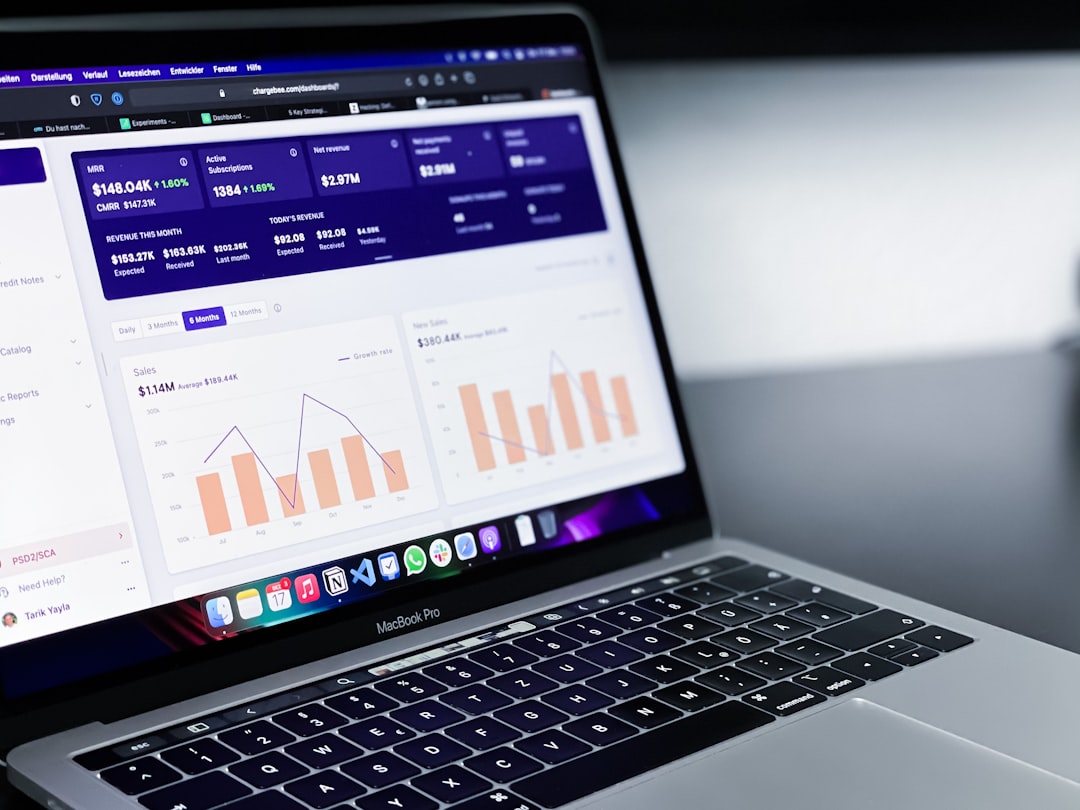
A customizable SaaS dashboard should be built as a user-controlled workspace, not as a fixed report page. The core pieces are a drag-and-drop grid, reusable widgets, clean data APIs, saved user preferences, and safe permission rules. This matters because cloud software keeps growing; Gartner forecast worldwide public cloud end-user spending to reach $679 billion in 2024 [source: Gartner].
TLDR: A strong SaaS dashboard lets each user move widgets, resize charts, save filters, and keep their own view across devices. For example, a sales manager may place monthly recurring revenue, churn, and open deals at the top, while a support lead tracks response time and ticket backlog. If a team of 50 users saves even 6 minutes per day by avoiding manual report setup, that is about 25 hours saved each week. The best build starts with a grid system, a widget registry, and a preference layer tied to each account.
Start with the Dashboard Layout
The layout is the base of the whole product experience. A SaaS team should use a grid system that supports dragging, resizing, snapping, and responsive breakpoints. Each widget needs a position, width, height, and order. That data should be stored in the database for each user or workspace.
Honestly, it feels like many dashboards make users fight the layout. A person moves a chart, refreshes the page, and the whole thing resets. That is the kind of small annoyance that makes software feel unfinished.
A simple layout record may include:
- Widget ID: The unique widget on the page.
- Position: Row and column inside the grid.
- Size: Width and height units.
- Visibility: Whether the widget is shown or hidden.
- Scope: Personal view, team view, or company default.

Create a Widget System
Each dashboard block should be treated as a widget. A widget can show a number, table, chart, map, activity feed, task list, or alert panel. The product team should create a widget registry that defines what each widget can do.
Good widget settings include title, data source, refresh rate, filters, chart type, and permission needs. This keeps the system clean. It also helps engineers add new widgets later without breaking the whole page.
Common widget types include:
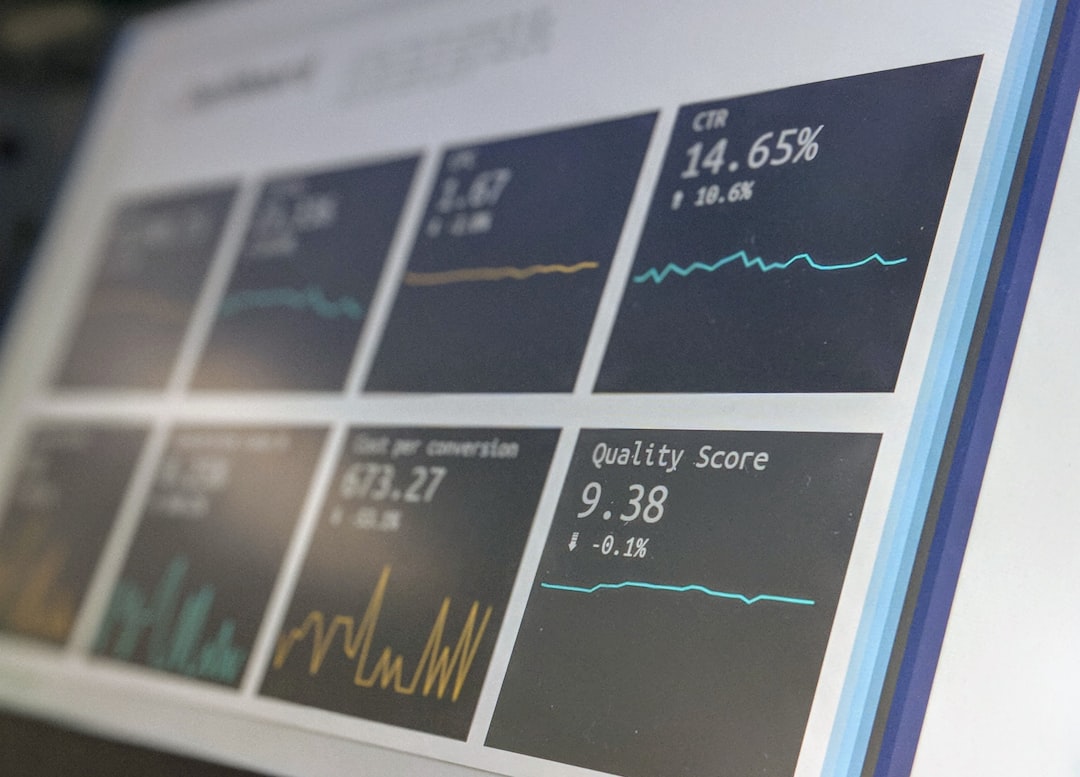
- KPI cards for revenue, churn, signups, or uptime.
- Line charts for trends over time.
- Bar charts for category comparisons.
- Tables for detailed records.
- Alerts for risks, failures, or targets.
Add Useful Data Visualizations
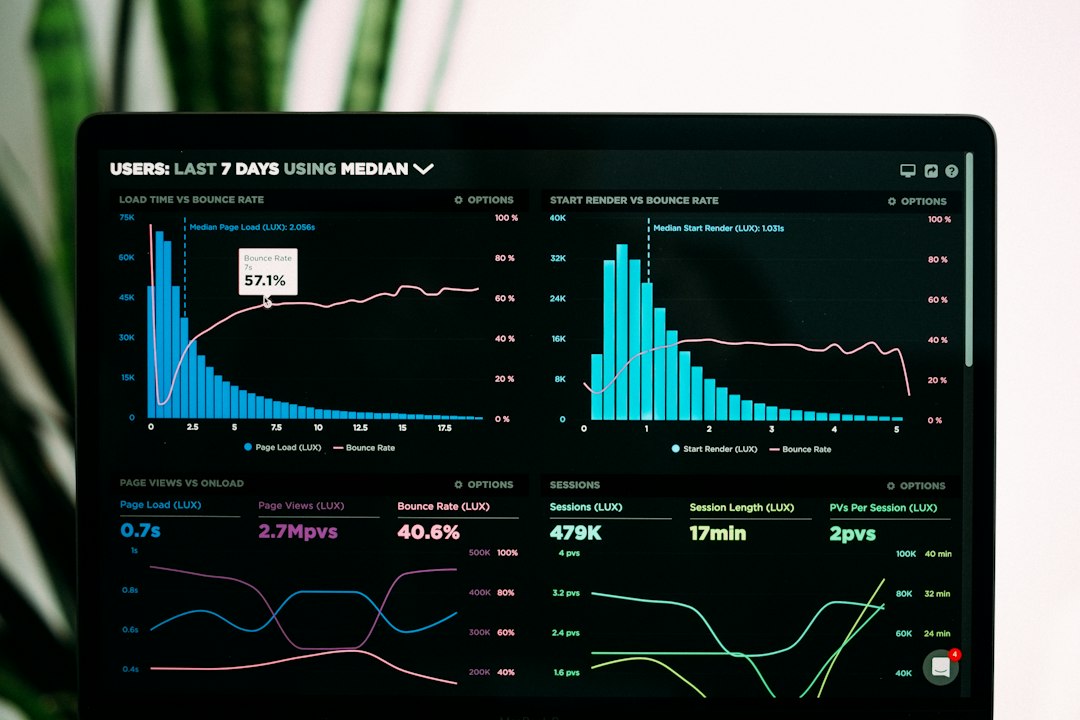
Charts should answer questions fast. They should not just look pretty. A user should know what changed, when it changed, and why it may matter.
For SaaS analytics, the most useful visuals often include MRR growth, trial conversion, feature usage, retention cohorts, and support volume. The dashboard should support filters for date range, team, plan, country, product, and segment.
It drives people nuts when a chart takes 8 seconds to load and then shows data with no label. Clear labels, quick loading, and empty-state messages prevent confusion. If no data exists, the widget should explain why. A short line like “No churn data for this period” is better than a blank box.
Save User Preferences Properly
User preferences turn a basic dashboard into a personal workspace. These settings should not live only in the browser. They should be saved on the server, linked to the user profile, and synced across devices.
Preferences may include:
- Default date range
- Selected widgets
- Widget order and size
- Chart colors
- Saved filters
- Timezone and currency
- Light or dark mode
The system should also support role-based defaults. A finance user may see billing data first. A product manager may see activation and usage. A support lead may see tickets and satisfaction scores.
Protect Data with Permissions
Customization must not break security. A user should never see a widget if they do not have access to its data. Permission checks should happen on the server, not only in the interface.
The dashboard should check three things before showing data:
- Role: What the user is allowed to view.
- Workspace: Which account or team owns the data.
- Widget access: Whether that widget is allowed for that user.
This avoids awkward mistakes, such as a support user seeing payroll numbers or a guest user opening revenue reports.
Plan for Performance
A dashboard may call many APIs at once. That can slow everything down. The team should use caching, background loading, pagination, and lazy loading. Widgets below the fold should load later.
Charts with heavy data should use summary tables or precomputed metrics. Real-time widgets should refresh only when needed. A dashboard that updates every second may look impressive, but it can waste server power and annoy users.
Build a Smooth Editing Experience
The edit mode should feel safe. Users need clear controls for adding, moving, resizing, duplicating, and removing widgets. A reset option should bring back the default layout. An undo option helps even more.
The interface should show drop zones and size guides while a widget is being moved. On mobile, full drag-and-drop may be harder, so the product can use simple move buttons or a reorder list.
Test with Real Users
Dashboard design should be tested with real work tasks. The team can ask users to build a sales view, hide unused widgets, change a date filter, and save a layout. If users pause often, the design needs work.
Success should be measured with simple numbers: setup time, widget usage, load speed, saved layouts, and support tickets. If 70% of active users customize at least one widget, the feature is likely useful.
FAQ
What is the best way to build drag-and-drop widgets?
A grid-based layout works best. Each widget should store its position, size, and settings in the database so the layout stays saved after refresh.
Should dashboard settings be saved per user or per team?
Both options help. Personal layouts should be saved per user, while admins can create shared team defaults for common roles.
Which charts are most useful in a SaaS dashboard?
KPI cards, line charts, bar charts, tables, and cohort views are usually the most useful. The right mix depends on the user’s role.
How can a SaaS dashboard stay fast?
It should use caching, lazy loading, smaller API responses, and precomputed metrics. Heavy charts should not load all raw records at once.
What is the biggest mistake to avoid?
The biggest mistake is giving users visual control without saving preferences or checking permissions. That creates confusion and security risks.