Reset network settings when Wi-Fi, Bluetooth, mobile data, VPN, or hotspot problems survive a restart and basic toggles. On iPhone, the reset is more predictable because Apple controls the menu path. On Android, the steps vary by brand, so a Samsung phone may not match a Google Pixel screen. Apple says this reset removes saved Wi-Fi networks, passwords, cellular settings, VPN settings, and APN settings [source: Apple].
TLDR: An iPhone reset is usually simpler: Settings > General > Transfer or Reset iPhone > Reset > Reset Network Settings. Android users should first search Settings for “reset network” because the menu changes by maker. For example, if a user has 12 saved Wi-Fi networks and 3 Bluetooth devices, all may need to be added again after the reset. A good rule: try airplane mode, restart, and router checks first; reset network settings only after those fail.
What a Network Settings Reset Actually Does
A network settings reset does not erase photos, apps, messages, contacts, or files. It only clears connection-related data. That sounds harmless, but it can still be annoying. Expect to waste time on Wi-Fi passwords, Bluetooth pairing, and workplace VPN setup if those details are not saved somewhere safe.
On most phones, the reset affects:
- Saved Wi-Fi networks and passwords
- Bluetooth pairings, such as earbuds, cars, watches, and speakers
- Mobile data preferences, including roaming and network selection
- VPN profiles, unless installed by a company profile or device manager
- APN settings, which can affect mobile internet and MMS
- Hotspot settings, such as hotspot name and password on some devices
The reset is best used when the phone sees networks but will not connect, keeps dropping mobile data, refuses Bluetooth pairing, or shows strange VPN behavior.
iPhone: Steps to Reset Network Settings
On an iPhone, the process is mostly the same across recent iOS versions. The user should charge the phone or keep it above 30 percent battery, then follow these steps:
- Open Settings.
- Tap General.
- Scroll down and tap Transfer or Reset iPhone.
- Tap Reset.
- Choose Reset Network Settings.
- Enter the passcode if asked.
- Confirm the reset.
The iPhone will restart. After that, the user must reconnect to Wi-Fi and pair Bluetooth devices again. If a VPN app was used, it may need to be opened and reauthorized. If the phone belongs to an employer, the profile may restore some settings automatically.
Honestly, it feels like Apple hides this option one level deeper than it should. A user can spend 20 seconds just finding the right reset menu, especially if they expect it under Wi-Fi or Cellular.
Android: Steps to Reset Network Settings
Android is less uniform. A Google Pixel, Samsung Galaxy, Motorola, OnePlus, and Xiaomi may use different labels. The fastest option is usually the Settings search bar.
General Android method:
- Open Settings.
- Tap the search field.
- Search for Reset network settings, Reset Wi-Fi, or Reset Bluetooth.
- Select the result that mentions Wi-Fi, mobile, and Bluetooth.
- Tap Reset settings.
- Enter the PIN, pattern, or password.
- Confirm the reset.
Google Pixel path: Settings > System > Reset options > Reset Bluetooth & Wi-Fi, or a similar reset option depending on Android version.
Samsung Galaxy path: Settings > General management > Reset > Reset Wi-Fi and Bluetooth settings, or Reset mobile network settings on newer models.
Some Android phones split the reset into separate choices. One button may reset only Wi-Fi and Bluetooth. Another may reset mobile network settings. This is useful, but also irritating when the user only wants one clean fix and gets three almost identical menu names.
Which Troubleshooting Steps Should Come First?
A reset should not be the first move. It is better treated as a mid-level fix. The user should try quick checks before wiping saved connection data.
1. Restart the Phone
A restart clears temporary bugs in Wi-Fi, Bluetooth, and mobile radio handling. It also forces carrier and router handshakes to refresh. This takes less than a minute and costs nothing.
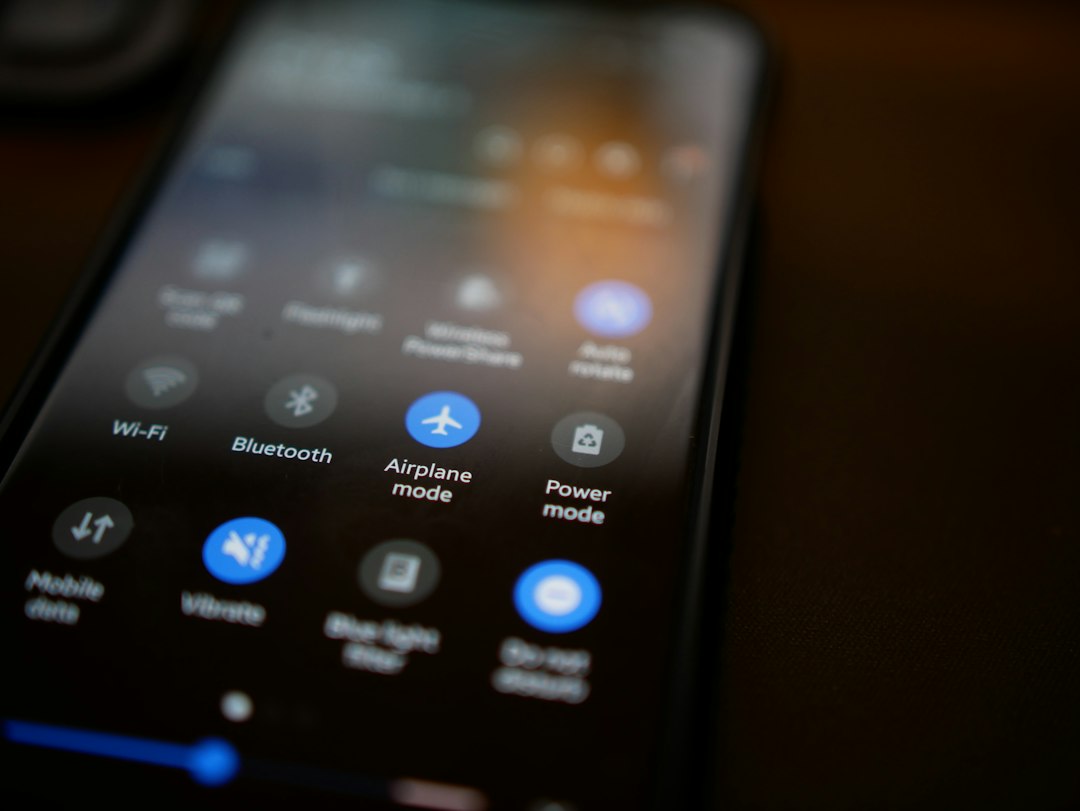
2. Toggle Airplane Mode
Turn on Airplane Mode for 10 to 15 seconds, then turn it off. This makes the phone reconnect to mobile towers, Wi-Fi, and Bluetooth systems. It often fixes weak signal lockups without removing any saved settings.
3. Check the Router or Mobile Signal
If only one Wi-Fi network fails, the router may be the problem. The user should test another device on the same network. If several devices fail, restart the router instead of resetting the phone.
If mobile data fails, the user should check signal bars, data limits, carrier outages, and SIM status. Android users can also check whether the preferred SIM has been changed by accident.
4. Forget One Wi-Fi Network
If one Wi-Fi network is broken, forgetting that network is cleaner than resetting every network setting. On iPhone, tap the information icon next to the Wi-Fi name and choose Forget This Network. On Android, open the saved network and tap Forget.
5. Re-pair One Bluetooth Device
If only one headset or car system fails, remove that device from Bluetooth settings. Then put the accessory in pairing mode and connect again. A full reset is overkill if the rest of Bluetooth works.
When iPhone Users Should Reset Network Settings
An iPhone user should reset network settings when broad connection problems keep returning. Good examples include:
- Wi-Fi connects, then drops every few minutes.
- The phone says “No Internet Connection” on working Wi-Fi.
- Mobile data works after a restart, then fails again.
- Bluetooth devices pair but do not stay connected.
- VPN connects but blocks normal browsing.
If the issue began right after an iOS update, this reset can help clear old network profiles. If the issue affects only a single app, the user should check app permissions, VPN filters, and content blockers first.
When Android Users Should Reset Network Settings
Android users should reset network settings when the issue spans several connection types or no single network is to blame. It is especially useful when the phone keeps switching between Wi-Fi and mobile data, fails to remember Bluetooth devices, or refuses to use 5G or LTE correctly.
Before resetting, Android users should also check:
- Private DNS settings, which can block browsing if misconfigured
- Battery saver, which can limit background data
- Data saver, which can block app access
- SIM selection on dual-SIM phones
- Carrier settings or carrier app updates

iPhone vs Android: Which Is Easier?
iPhone is easier for a full network reset. The menu path is consistent, the wording is clear, and the result is predictable. The drawback is that iOS offers less fine control. The user cannot always reset only Bluetooth or only mobile settings.
Android gives more control but creates more confusion. Some phones separate Wi-Fi, Bluetooth, and mobile resets. That can save time. It can also make the fix harder to find. The right choice depends on the problem. If only Bluetooth fails, Android may offer a cleaner fix. If everything feels broken, iPhone’s single reset button is simpler.
Before Resetting: Save These Details
The user should collect a few details before pressing reset:
- Home and office Wi-Fi passwords
- VPN login details
- Carrier APN settings, if manually entered
- Bluetooth pairing instructions for car systems
- Hotspot name and password, if shared with other devices
This small checklist prevents the most common post-reset headache: the phone is fixed, but nobody remembers the office Wi-Fi password.
FAQ
Does resetting network settings delete photos or apps?
No. It does not delete photos, apps, messages, or contacts. It removes connection settings only.
Will an iPhone lose its eSIM after a network settings reset?
Usually no. A network settings reset should not delete the eSIM itself. It may reset cellular preferences, so the user should check mobile data settings afterward.
Does Android reset network settings remove Bluetooth devices?
Yes, in many cases. Paired earbuds, cars, speakers, and watches may need to be paired again.
Should the user reset the router or the phone first?
If several devices have the same Wi-Fi issue, reset or restart the router first. If only one phone has the issue, troubleshoot the phone.
How often should network settings be reset?
Rarely. It is a repair step, not regular maintenance. If the same issue returns weekly, the cause may be a router, carrier, SIM, VPN, or hardware problem.
Which is better for troubleshooting, iPhone or Android?
iPhone is simpler for one full reset. Android is better when the user wants to reset only Wi-Fi, Bluetooth, or mobile settings, if the phone offers those separate options.