Fix a grainy iPhone screen protector by cleaning the glass, checking for dust under the protector, and deciding whether the protector itself is the problem. Start with a microfiber cloth and a bright light. Apple advises using a soft, slightly damp, lint-free cloth when cleaning an iPhone, which is also the safest first step before lifting or replacing a protector [source: Apple].
TLDR: If the screen looks sandy, cloudy, or sparkly, the cause is usually dust, trapped moisture, a bad install, or a matte screen protector. In a quick 5-minute check, tilt the phone under a lamp: if the specks move or appear uneven, dirt is likely trapped; if the haze covers nearly 100% of the display evenly, the protector may be the issue. For example, a matte privacy protector can make white pages look grainy even when installed perfectly. Clean first, lift only if needed, and replace the protector if the texture is built into the film.
Why Your iPhone Screen Protector Looks Grainy
A grainy screen protector is annoying because it makes a sharp iPhone display look cheap. Text can look fuzzy. White backgrounds may sparkle. Dark areas may look dusty. It drives me crazy that one tiny speck can make a new protector look ruined.
The most common causes are:
- Dust under the protector: Tiny particles create bright dots or rough patches.
- Air bubbles: These can scatter light and make the screen look uneven.
- Moisture or cleaning residue: Leftover liquid can cause cloudy marks.
- Matte texture: Matte and anti-glare protectors often add visible grain by design.
- Low-quality adhesive: Cheap protectors may not sit flat, especially near the edges.
- Scratches: Fine surface scratches can look like haze under bright light.
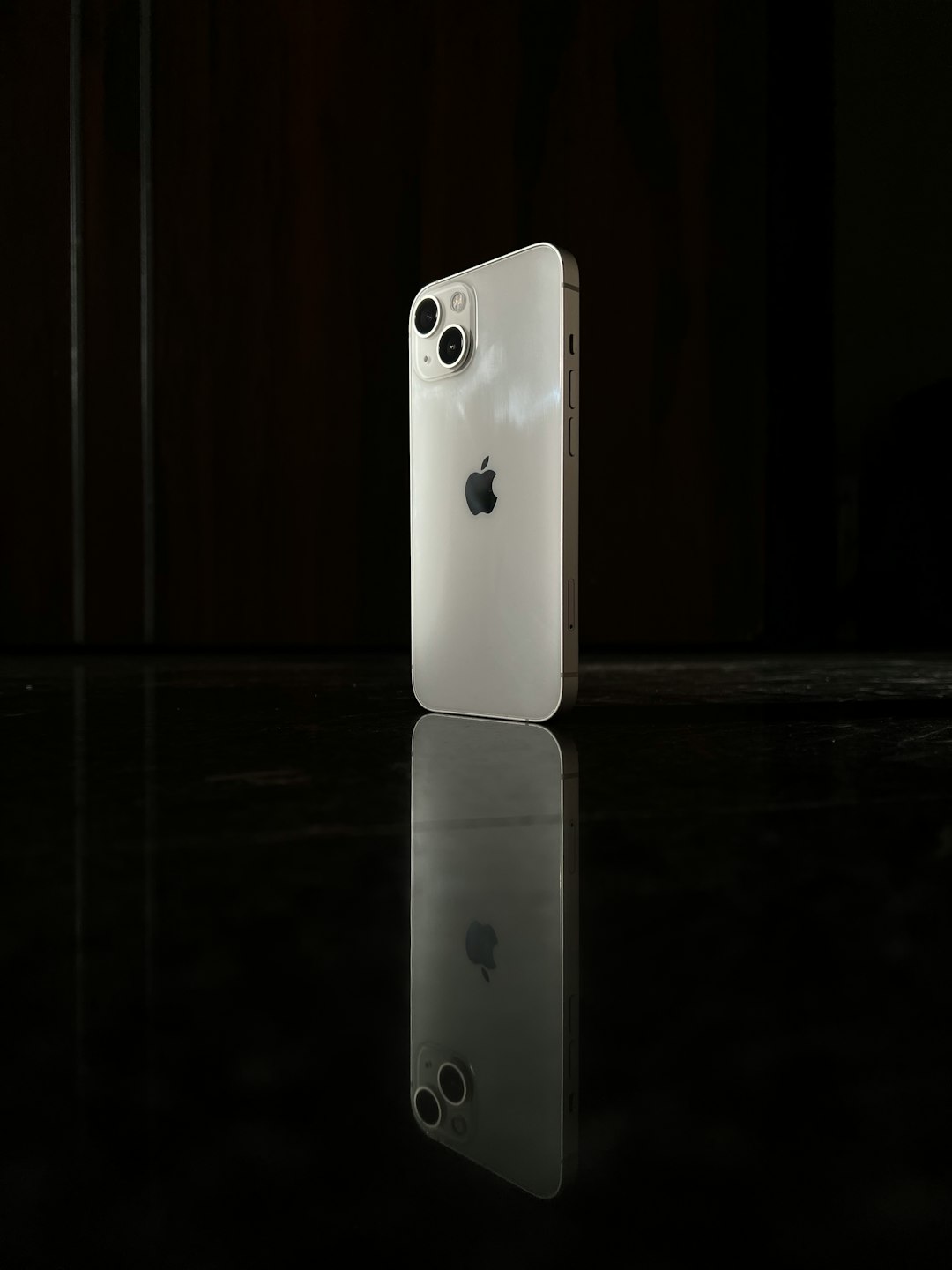
Step 1: Clean the Outside First
Do not peel the protector right away. You may create more dust. First, clean the outside surface.
- Turn off the iPhone.
- Remove the case.
- Wipe the screen with a clean microfiber cloth.
- If needed, slightly dampen one corner of the cloth with water.
- Dry the screen with the clean, dry side.
Do not use paper towels. They can leave fibers and tiny scratches. Avoid window cleaner, strong alcohol, and household sprays. They can damage coatings and may seep around the protector edges.
Now look again. If the grain is gone, it was just surface dirt. If it is still there, move on.
Step 2: Check Whether the Grain Is Above or Below the Protector
Use a flashlight or a desk lamp. Tilt the iPhone slowly. Look at the specks from different angles.
- Specks that look sharp and fixed: likely dust under the protector.
- Cloudy patches near the edge: likely weak adhesive or trapped air.
- Uniform sparkle across the whole screen: likely matte texture.
- Lines or scuffs visible when the screen is off: likely surface scratches.
This test matters. If the protector itself has a matte finish, cleaning will not remove the grain. That texture is doing its job by reducing glare, but the trade-off is a less crisp image.
Step 3: Remove Dust Without Fully Reinstalling
If one corner or one area has trapped dust, you can try a careful lift. Work slowly. Expect to waste time on this if the room is dusty. Even 10 extra seconds with the protector lifted can invite more lint.
- Wash and dry your hands.
- Work in a clean room with little airflow.
- Use a piece of clean tape to lift one edge of the protector.
- Use another piece of tape to touch the dust particle.
- Do not touch the adhesive with your fingers.
- Let the protector fall back into place.
- Push air outward with a microfiber cloth or squeegee.
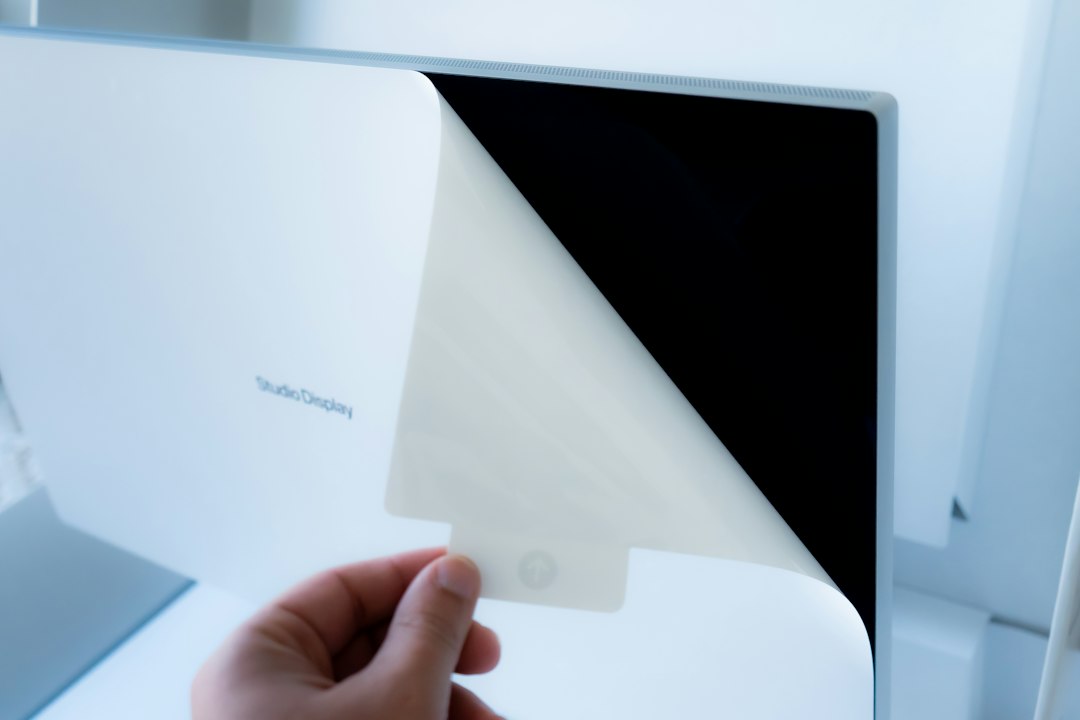
Be gentle. If you bend tempered glass too much, it can crack. If the protector is plastic film, it may stretch or crease. Once that happens, the mark is usually permanent.
Step 4: Push Out Air Bubbles the Right Way
Small bubbles can make the screen look rough. Many go away after 24 to 48 hours, especially if they are tiny. Larger bubbles need pressure.
Wrap a credit card in a microfiber cloth. Push from the center toward the nearest edge. Use steady pressure, not force. If the bubble has dust in the middle, it will not disappear. You will need to lift the protector and remove the particle.
Do not press hard near the speaker, camera area, or edges. You could crack the protector or damage the adhesive seal.
Step 5: Decide If the Protector Should Be Replaced
Sometimes the honest fix is replacement. A protector should be replaced if:
- The grain covers the full display evenly and bothers your eyes.
- The adhesive looks cloudy in several areas.
- The protector has fine scratches that catch light.
- Dust is trapped in many spots.
- The edges keep lifting after you press them down.
If you want the clearest screen possible, choose a clear tempered glass protector. Avoid matte, paper-feel, and privacy protectors if sharp text matters most to you. Those styles help with glare, drawing feel, or side viewing, but they often reduce clarity.
How to Install the New One Without Grain
A clean install matters more than the brand. Do it in a bathroom after running a hot shower for a few minutes, then let the steam settle. This can reduce floating dust. Keep the phone away from water, of course.
- Wash your hands.
- Remove the old protector slowly.
- Clean the screen with the included wipe.
- Dry it fully.
- Use the dust sticker over the entire screen.
- Align the protector before touching it down.
- Press the center and let the adhesive spread.
When Grain Is Normal
Some grain is not a defect. Matte protectors scatter light to reduce reflections. That rough surface can make white screens look slightly dirty. Privacy protectors can also dull brightness and add a faint grid or shimmer.
If you read a lot, edit photos, or use your iPhone for design work, a clear protector is the safer choice. If you use the phone outdoors often, matte may still be worth it. Just know the trade-off before blaming the install.
Final Check
Clean the screen first. Inspect it under light. Remove dust only if you can do it safely. Replace the protector if the grain is built into the material or spread across the whole display. A good protector should protect the iPhone without making the screen look worse every time you unlock it.