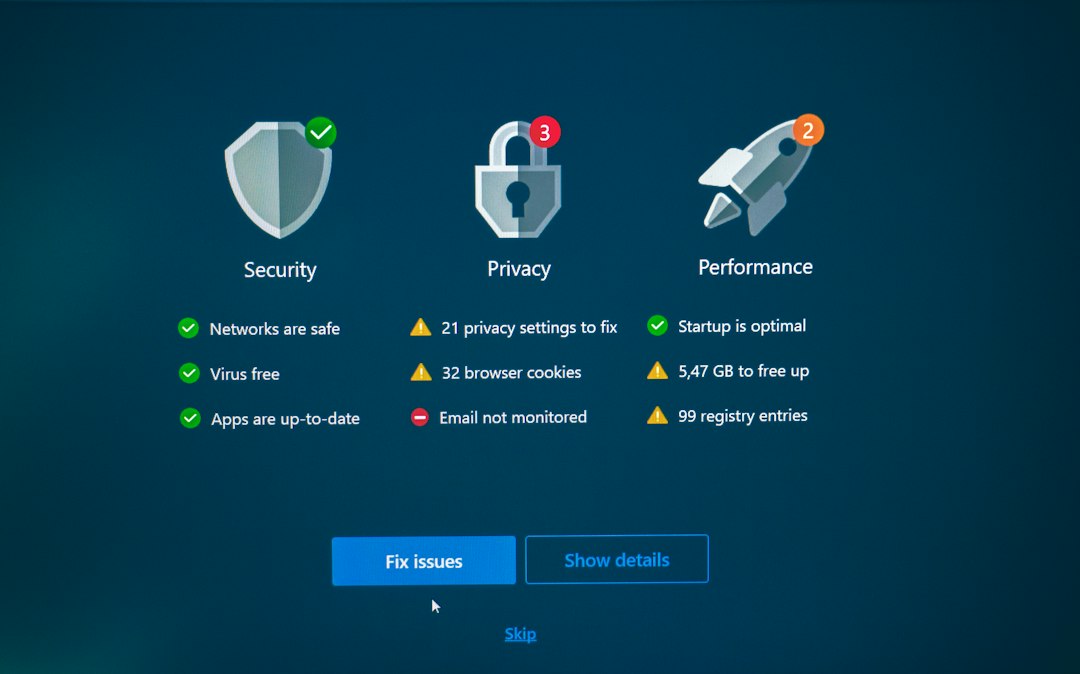
Use VEED if you want the quickest blur job. Use Kapwing if you want more control and plan to edit the video too. Blurring matters because one tiny detail can cause a big privacy mess. The average global cost of a data breach hit $4.88 million in 2024, so hiding faces, plates, addresses, screens, and ID cards is not just “nice to have” [source: IBM].
TLDR: VEED is faster for simple blur tasks, like hiding a face in a 30-second TikTok clip. Kapwing is better when you need blur plus captions, trims, stickers, and edits in one project. For example, a small HR team could blur employee badges in 12 training clips before sharing them with contractors. If speed is the goal, pick VEED; if control is the goal, pick Kapwing.
Why blur a video online?
Because cameras catch too much.
Your video may show a child’s face. A car plate. A home address. A Slack message. A credit card on a desk. A medical form in the corner. Yep, the camera saw it. Rude.
Online blur tools help you hide those details without installing heavy software. You upload the clip. Add a blur shape or face blur. Export. Done.
This is useful for:
- Teachers hiding student faces.
- HR teams hiding employee data.
- Real estate agents hiding family photos in a home tour.
- YouTubers hiding license plates or street signs.
- Customer support teams hiding emails and account IDs.
VEED vs. Kapwing: the simple answer
VEED feels more direct. It is great when you want to blur something and leave. Upload, blur, export. Nice.
Kapwing feels more like a full editing studio in your browser. It can blur, yes. But it also shines when you need captions, cuts, resizing, brand assets, audio fixes, and team edits.
Honestly, it feels like VEED says, “Let’s fix that face and move on.” Kapwing says, “While we are here, want to rebuild the whole video?” Both are useful. It depends on your mood and deadline.
How to blur a video in VEED
VEED is friendly for beginners. The interface is clean. The blur tools are easy to spot.
- Go to VEED’s online video editor.
- Upload your video.
- Find the blur option or add an overlay shape.
- Place the blur over the private detail.
- Adjust size, strength, and timing.
- Preview the clip.
- Export the video.
For a face, use a soft blur. For text, use a stronger blur. Text is sneaky. A weak blur can still leave letters readable, especially on a big screen.
Best use case: You have a video of a school event. One parent asked that their child not appear online. VEED makes it quick to blur that child’s face before posting.
VEED pros and cons
- Pro: Easy to learn.
- Pro: Good for quick privacy fixes.
- Pro: Works in the browser.
- Pro: Helpful for social clips and short videos.
- Con: Some export options may need a paid plan.
- Con: Fine timing can take patience.
- Con: Large files may feel slow, depending on your connection.
It drives me a little nuts when a blur looks perfect in one frame, then the person moves two steps left and escapes the blur like a tiny privacy ninja. Always preview the full clip.
How to blur a video in Kapwing
Kapwing is also browser-based. It gives you more editing tools around the blur. That is handy if your video needs more than one fix.
- Open Kapwing’s video editor.
- Upload your video.
- Add a blur effect, shape, or layer.
- Place it over the sensitive area.
- Animate or adjust it over time if the object moves.
- Add captions, cuts, or resizing if needed.
- Export your final video.
Kapwing is strong when you need blur plus packaging. Say you need a vertical version for TikTok, a square version for LinkedIn, and captions for silent viewers. Kapwing handles that kind of job well.
Kapwing pros and cons
- Pro: Great for full video edits.
- Pro: Good caption and format tools.
- Pro: Useful for teams and content workflows.
- Pro: Can handle multi-step projects.
- Con: More tools can mean more clicking.
- Con: Simple blur tasks may feel heavier than needed.
- Con: Export limits and branding rules can change by plan.
Expect to spend an extra minute finding the exact setting you want if you are new. Not awful. Just mildly annoying when you only came to hide one license plate.
Which tool protects sensitive details better?
The tool matters. But your process matters more.
A bad blur in VEED is still bad. A bad blur in Kapwing is still bad. The safest result comes from careful placement, strong blur, and full playback checks.
Use this simple privacy checklist:
- Watch the whole video before export.
- Pause on busy scenes and check the corners.
- Use stronger blur for text, numbers, and documents.
- Track moving objects frame by frame if needed.
- Export a test version and view it full screen.
- Ask someone else to inspect it if the video is sensitive.
If the clip has medical, legal, student, or financial data, be extra picky. A cute little blur cloud may not be enough. Use a solid block, crop the frame, or remove that part of the video.
Speed test: which feels faster?
For a basic blur, VEED usually feels quicker. It has fewer distractions. You can get in and out fast.
Kapwing may take longer because it offers more things. That is not bad. It is just not always needed.
Here is a simple way to think about it:
- One face in one short clip: VEED.
- Five clips with captions and resizing: Kapwing.
- A moving car plate: either tool, but check timing closely.
- A full content campaign: Kapwing.
- A rushed privacy fix: VEED.
Blur strength: do not be shy
Weak blur is risky. It may look fine on your phone. Then someone views it on a 4K monitor and reads the text anyway. Great. Now everyone is sweating.
For faces, medium blur often works. For license plates, use strong blur. For documents, use a solid cover if possible. Black boxes are not pretty, but they do the job.
Pretty is nice. Private is better.
What about watermarks and pricing?
Both VEED and Kapwing can change their free plan rules. Export quality, watermarking, storage, video length, and collaboration features may depend on the plan.
Before you start a big batch of videos, check:
- Will the export have a watermark?
- Can you export in HD?
- Is your video too long for the free plan?
- Can you download without branding?
- Do you need team access?
This matters if you are making client work. Nobody wants to blur 20 videos, export them, and then spot a giant watermark. Painful.
Final pick
Choose VEED if you want a fast, simple blur tool. It is the better pick for quick fixes, social clips, and beginner users.
Choose Kapwing if your blur is part of a bigger edit. It is better for captions, resizing, repurposing, and team projects.
The real winner is the one that helps you hide the sensitive detail without making you fight the software. If you only need blur, go VEED. If you need a mini production room in your browser, go Kapwing.
And please, preview the video twice. The blur box that stays still while the face walks away is comedy. But not the good kind.