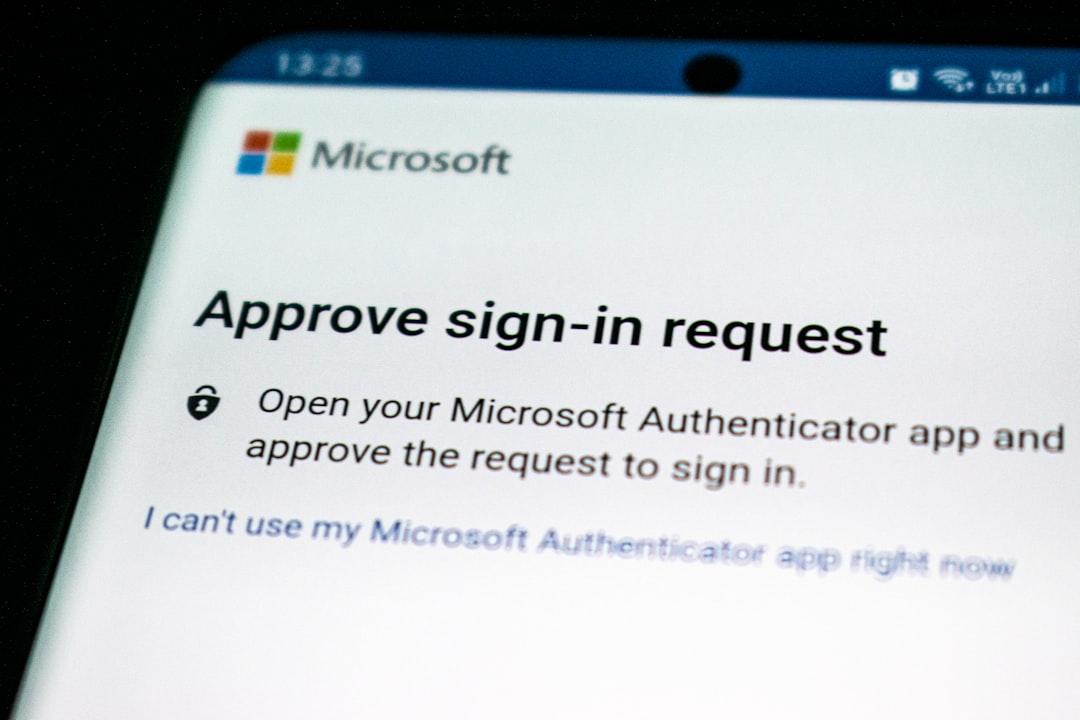

Protect your WordPress membership login by locking out repeat failures, adding two factor checks, and watching strange login patterns. Credential stuffing is not clever hacking. It is more like someone trying every key on a giant key ring. Microsoft says multi factor authentication can block over 99.9% of account compromise attacks [source: Microsoft]. So yes, make the login door boring, slow, and painful for bots.
TLDR: Install Login Lockdown, limit failed logins, and block repeat offenders fast. If your site has 2,000 members and only 1% reuse old passwords, that is still 20 easy targets for a bot. Add strong passwords and two factor login for your admins and paid members. Start with a lockout rule like 3 failed tries in 5 minutes, then tighten it if attacks keep coming.
Image not found in postmetaWhat is credential stuffing?
Credential stuffing is when attackers use stolen usernames and passwords from other sites. They throw them at your WordPress login page. If a member reused a password, the attacker may get in.
It drives me crazy that one reused password can beat a fancy membership site. You can have great content. Nice design. Paid courses. Private groups. Then one weak login opens the side door.
The good news is simple. You do not need to become a security wizard. You need to make bots hit a wall.
Step 1: Install Login Lockdown
Start with the free Login Lockdown plugin. It limits failed login attempts from the same IP address. That means a bot cannot keep guessing forever.
For more control, check Login Lockdown PRO. It adds stronger tools for serious membership sites. This is helpful if your site has paid users, private lessons, downloads, or customer data.
Basic setup is quick:
- Go to Plugins in WordPress.
- Click Add New.
- Search for Login Lockdown.
- Install and activate it.
- Open the plugin settings.
- Set failed login limits.
Step 2: Set sane lockout rules
Do not be too soft. Bots love soft rules. A good starting point is:
- Max login retries: 3
- Retry time period: 5 minutes
- Lockout length: 30 minutes
- Lockout invalid usernames: Yes
This means a bot gets three bad tries. Then it sits outside. Like a raccoon staring through a window.
Be careful with real members. Some people forget passwords. Some type with caps lock on. Honestly, it feels like login forms exist to expose how bad we all are at typing. So give users a clear password reset link.
Step 3: Hide clues from failed logins
WordPress can sometimes give away tiny hints. For example, it may say the username is wrong. Or the password is wrong. That helps attackers.
Use Login Lockdown settings to reduce login feedback where possible. Keep errors plain. Say something like:
Login failed. Please try again or reset your password.
That is enough for humans. It gives bots less to chew on.

Step 4: Add two factor login for key users
Lockouts slow the attack. Two factor login blocks more stolen passwords. Use it for:
- Admins
- Editors
- Support staff
- Coaches or instructors
- Members with billing access
If a password leaks, the attacker still needs the second code. That extra step may feel annoying. But losing member accounts is far worse. Expect to waste more than a few seconds if you skip it and have to clean up a mess.
Step 5: Force better passwords
Your members do not need wild passwords like a cat walked across the keyboard. They need long ones. Long beats weird.
Suggest passphrases like:
- BlueCoffeeRunsAt7
- MyDogLikesTacos42
- GymMusicRainySunday
Tell users not to reuse passwords. Put this on the registration page. Put it in welcome emails. Put it near the password reset form. Yes, repeat it. People skim.
Step 6: Watch login reports
Do not set the plugin and vanish. Check your login activity. Look for patterns like:
- Many failed attempts on one username.
- Many usernames from one IP.
- Logins from odd countries.
- Failed attempts every few seconds.
If you see a spike, tighten the lockout rules. You can also block repeat IPs. For a paid membership site, check reports at least once a week. During a sale or launch, check daily.
Step 7: Protect the boring accounts too
Attackers do not only want admin accounts. A normal member account can still be useful. It may expose paid content. It may hold names, emails, invoices, or course progress.
So protect every login. Not just yours.
Here is a simple routine:
- Use Login Lockdown to limit bad attempts.
- Turn on stronger rules for admins.
- Ask members to use long passwords.
- Add two factor login for high risk users.
- Review failed login logs each week.
- Reset passwords for accounts under attack.
Quick final checklist
Install Login Lockdown. Set a low retry limit. Block invalid username probes. Keep error messages vague. Add two factor checks where it matters. Teach members to use long, unique passwords.
Credential stuffing is cheap for attackers. Make it expensive. Make it slow. Make your login page the most boring place on the internet for bots.