Use EZGIF when you need to blur part of an existing GIF; use Canva when you want a pretty animated graphic with simple blur effects. EZGIF has a tool made for censoring GIFs with blur or pixelation [source: EZGIF]. Canva is better for design polish, text, stickers, layouts, and brand style. Pick the tool based on the job, not the hype.
TLDR: EZGIF wins for quick privacy blur on an uploaded GIF, like hiding a face in a 12-frame reaction GIF in under a few minutes. Canva wins when you are making a social post, ad, or story from scratch and want soft blur behind text. If your GIF has a moving object that must stay blurred, EZGIF is usually less painful. If your final file must look cute, clean, and on-brand, Canva feels nicer.
What does “blur an image in a GIF” even mean?
A GIF is not one image. It is a stack of frames. Think of it like a tiny flipbook. Each frame appears fast. Your brain sees motion.
So when you blur something in a GIF, you may need to blur it on every frame. That is where things get annoying. A blur that looks perfect on frame 1 may miss the face on frame 8. Great. More clicking.
You might blur a GIF for many reasons:
- Hide a face.
- Cover a license plate.
- Mask a username.
- Soften a rough background.
- Make text easier to read.
- Add a dreamy mood.
EZGIF: the fast little tool that gets the job done
EZGIF looks plain. Very plain. Like it packed one shirt and never upgraded its suitcase.
But for GIF editing, it is often perfect. You upload a GIF. You choose a tool. You apply the edit. You download the result. No account drama. No glitter storm. Just buttons.
For blur, the key tool is usually the Censor GIF option. It lets you cover part of the animation with blur, pixelation, or a solid block. This is handy for privacy edits.
How to blur a GIF in EZGIF
- Go to EZGIF.
- Open the Censor GIF tool.
- Upload your GIF.
- Select the area you want to blur.
- Pick blur or pixelate.
- Apply the effect.
- Preview the result.
- Download the new GIF.
If the object does not move much, this is easy. If it moves all over the place, expect to waste time on frame checking. Honestly, it feels like chasing a mosquito with a tiny blanket.
Where EZGIF shines
- Privacy edits: Faces, names, plates, and screens.
- Quick fixes: No big design project needed.
- Small files: It handles simple GIF jobs well.
- Direct workflow: Upload, blur, export.
Where EZGIF gets grumpy
- The interface feels old.
- Precision can be clunky.
- Moving blur areas can take patience.
- It is not made for fancy layouts.
It drives me crazy that one small moving face can turn a 30-second edit into a tiny frame-by-frame chore. Still, EZGIF is usually the better tool when the task is simple: hide this thing in this GIF.
Canva: the pretty choice for designed animated graphics
Canva is not just a GIF editor. It is a design tool. That matters.
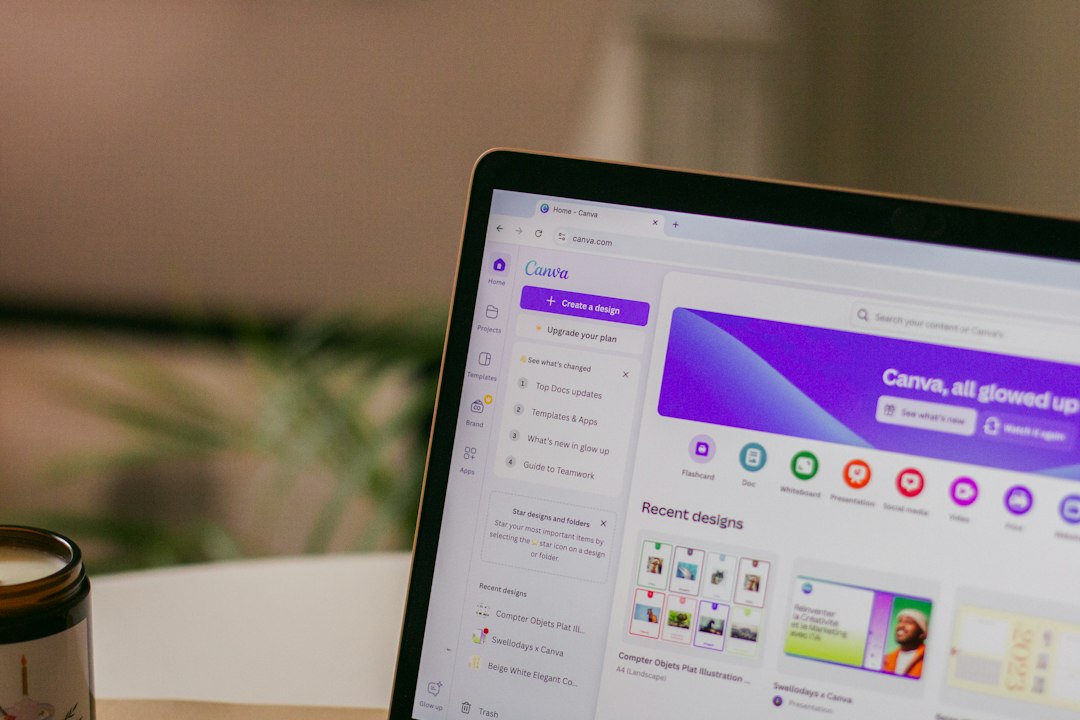
If you are making an Instagram story, a product teaser, a meme card, or a sparkly email header, Canva can feel smoother. You can add text, shapes, stickers, photos, video clips, and animations. Then you can export as a GIF. Canva also explains how to download designs as GIF files [source: Canva].
Blur in Canva is best when you control the design. For example, you can blur a background photo, place text on top, and animate the elements. That gives you a clean final GIF.
How to use blur in Canva for an animated GIF
- Create a new design.
- Add a photo or background.
- Apply a blur effect to the image.
- Add text, graphics, or stickers.
- Animate the page or elements.
- Click download.
- Choose GIF as the file type.
This works well for blur as a visual style. Think soft background, sharp headline. Or a blurred product close-up behind a sale badge.
Where Canva shines
- Clean design: Great templates and type tools.
- Brand look: Easy colors, logos, and fonts.
- Social posts: Good sizes for platforms.
- Animated text: Easy motion effects.
Where Canva struggles
- It is not ideal for censoring a moving item inside an existing GIF.
- You may not get true frame-level control.
- Some effects depend on the content type.
- Exports can feel heavier than expected.
The catch is that Canva can make a GIF look great, but it may fight you when you need surgical blur. A moving face inside a 3-second GIF? EZGIF is usually the less fussy pick.
EZGIF vs Canva: quick comparison
| Task | Best tool | Why |
|---|---|---|
| Blur a face in an existing GIF | EZGIF | Made for direct GIF edits. |
| Create a GIF ad with blurred background | Canva | Better design tools. |
| Cover a username | EZGIF | Fast censor effect. |
| Make a cute animated quote | Canva | Templates and text effects. |
| Blur one moving object | EZGIF | More control for GIF repair. |
Which one should you choose?
Choose EZGIF if your GIF already exists and you need to hide something. It is best for practical edits. It is not glamorous. It is the toolbox in the garage. Weird buttons, useful results.
Choose Canva if you are building the GIF as a design piece. It is best for posts, slides, promos, banners, and light animation. It is the craft table with stickers. Much prettier. Sometimes slower.
Here is a simple rule:
- Need to protect privacy? Use EZGIF.
- Need to impress viewers? Use Canva.
- Need both? Blur sensitive parts in EZGIF first, then design around the cleaned GIF in Canva.
Best workflow for clean results
If you want a polished GIF with safe content, use both tools.
- Start with the original GIF.
- Upload it to EZGIF.
- Blur the private part.
- Download the clean GIF.
- Upload it to Canva.
- Add titles, stickers, logos, and colors.
- Export the final version as a GIF.
This two-step method is simple and smart. EZGIF handles the messy privacy job. Canva handles the pretty stuff. Nobody needs to suffer more than needed.
Final pick
EZGIF is the winner for editing blur into an existing GIF. It is quick, focused, and useful for censoring. Canva is the winner for making animated graphics that include blur as part of the design. It looks better and feels friendlier.
If your goal is “hide that face,” use EZGIF. If your goal is “make this post pop,” use Canva. If your goal is both, use EZGIF first and Canva second. Simple. Clean. No GIF meltdown required.