
Start with a force restart if your iPhone shows a white screen but still seems to be on. It is the safest first step because it does not erase data, takes less than a minute, and fixes many temporary iOS freezes. Use Recovery Mode only when the white display returns, the iPhone will not boot, or a computer detects it but the screen stays blank.
TLDR: Try a force restart first, then use Recovery Mode if the iPhone stays stuck on a white screen. For example, if an iPhone 13 turns white after an iOS update and responds to button presses, a force restart may bring it back in about 30 seconds. In repair discussions and support cases, software freezes are often resolved without data loss, while Recovery Mode becomes useful when the device loops or fails to start. If the screen is pure white after a drop or water exposure, expect a higher chance of hardware trouble.
What the White Screen Usually Means
A white display on an iPhone can happen for several reasons. Some are simple. Some are not. The phone may be frozen during startup. iOS may have crashed after an update. An app may have locked the system. In worse cases, the display cable, screen panel, or logic board may be damaged.
The key question is this: is the iPhone still working behind the white screen? If you hear alerts, feel vibration, or see the device appear in Finder or iTunes, the system may still be alive. If there is no sound, no vibration, no charging response, and no computer detection, the problem may be deeper.
Honestly, it feels like the same symptom should mean one clear thing. It does not. A white screen can be a minor iOS freeze or a failed display. That is why the order of troubleshooting matters.

Force Restart: The First Move
A force restart cuts power to the current iOS session and tells the iPhone to boot again. It does not delete photos, messages, apps, or settings. It is different from a normal restart because it works even when the screen does not respond.
Use a force restart when:
- The screen is white but the iPhone seems powered on.
- The device froze after opening an app.
- The white screen appeared after an iOS update.
- The phone vibrates, rings, or receives notifications.
- You have not recently dropped it or exposed it to liquid.
How to Force Restart Recent iPhones
For iPhone 8, iPhone SE 2nd generation or later, and iPhone X through iPhone 15 series:
- Press and quickly release Volume Up.
- Press and quickly release Volume Down.
- Press and hold the Side button.
- Keep holding until the Apple logo appears.
For iPhone 7 and iPhone 7 Plus:
- Press and hold Volume Down and the Side button together.
- Release both buttons when the Apple logo appears.
For iPhone 6s, iPhone SE 1st generation, and older models:
- Press and hold the Home button and the Side or Top button.
- Release them when the Apple logo appears.
If the Apple logo appears, wait. The first boot after a freeze can take longer than usual. Give it up to five minutes before pressing buttons again.
When Force Restart Is Not Enough
If the iPhone returns to the white screen, freezes again, or stays stuck during startup, a simple reboot may not fix the damaged system state. That is when Recovery Mode becomes the next serious option.
Expect to waste time here if your cable is poor or your computer has old software. A weak cable can make the iPhone connect, disconnect, and fail the update. It is annoying because the process may fail after several minutes, not at the start.
Recovery Mode: Stronger, Riskier, More Useful
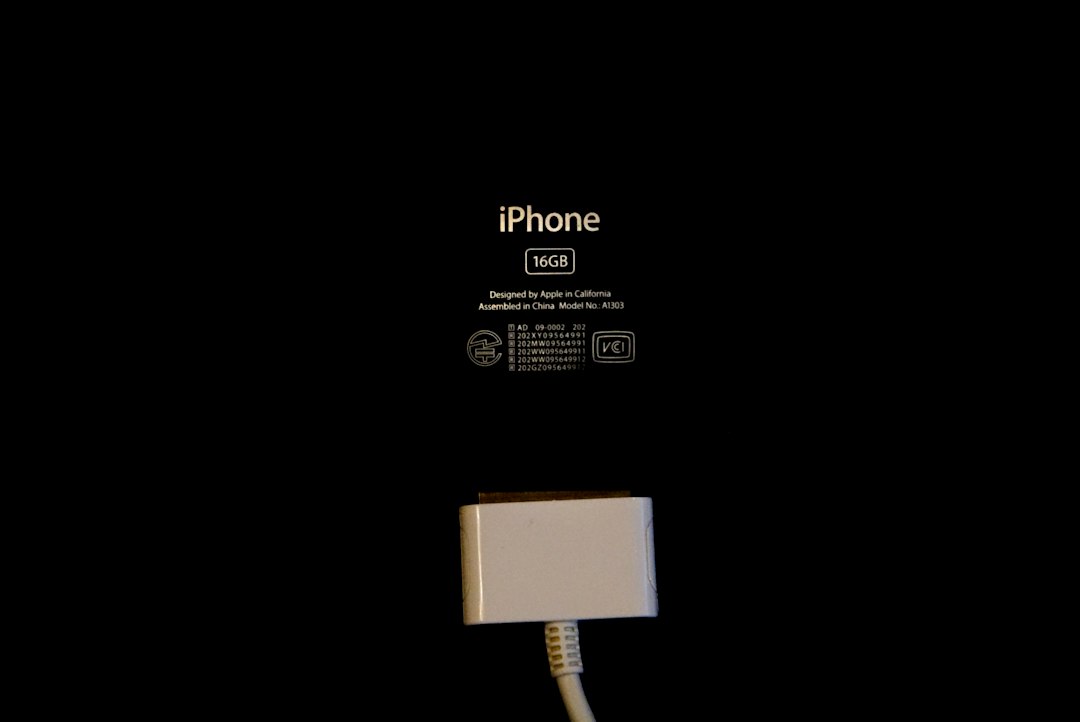
Recovery Mode lets a Mac or Windows PC reinstall iOS on the iPhone. It is designed for startup failures, update failures, and devices that cannot load iOS normally. It can fix a white screen caused by corrupt system files.
There are two choices in Recovery Mode:
- Update: Reinstalls iOS while trying to keep your data.
- Restore: Erases the iPhone and installs iOS fresh.
Choose Update first. Restore should be the last software step unless your data is already backed up or you accept losing it.
How to Use Recovery Mode
- Connect the iPhone to a Mac or Windows PC with a reliable cable.
- Open Finder on macOS Catalina or later. Open iTunes on Windows or older macOS versions.
- Put the iPhone into Recovery Mode using the same button sequence as a force restart, but keep holding the final button until the recovery screen appears.
- When the computer offers Update or Restore, select Update first.
- Wait for the download and install process to finish.
If the download takes more than 15 minutes, the iPhone may exit Recovery Mode. If that happens, repeat the button steps after the download finishes. That part is irritating, but it is normal.
Force Restart vs Recovery Mode: Which Should You Use?
| Situation | Best First Choice | Why |
|---|---|---|
| White screen appeared once, no drop, phone still responds | Force restart | Fast and does not affect data |
| White screen after iOS update | Force restart, then Recovery Mode | The update may have stalled or failed |
| Device loops between Apple logo and white screen | Recovery Mode | iOS may need repair |
| White screen after impact or water exposure | Hardware inspection | Software steps may not fix physical damage |
| Computer detects iPhone but display stays white | Recovery Mode or service | The screen or iOS may be failing |
Check These Before You Restore
Before erasing anything, do a few basic checks. They can save your data and your patience.
- Charge for at least 20 minutes. A low battery can cause odd startup behavior.
- Use a known good cable. Cheap or damaged cables often break Recovery Mode installs.
- Try another port. Avoid loose USB hubs during iOS repair.
- Update the computer software. Finder and iTunes need current device support.
- Check for heat. If the iPhone is very hot, unplug it and let it cool.
If you have an iCloud or computer backup, confirm its date before choosing Restore. If you do not have a backup, choose Update and avoid Restore unless there is no other path.
Signs It Is Probably a Hardware Problem
Recovery Mode cannot repair a broken display. It also cannot fix liquid damage or a failing internal connector. If the white screen started after a hard drop, pressure on the screen, or water contact, software repair may fail even if the iPhone is detected.
Watch for these signs:
- The white screen changes when you press near the edges.
- There are faint lines, flicker, or bright spots.
- The iPhone works with VoiceOver or rings, but the display never changes.
- The screen was recently replaced.
- The phone gets hot during startup.
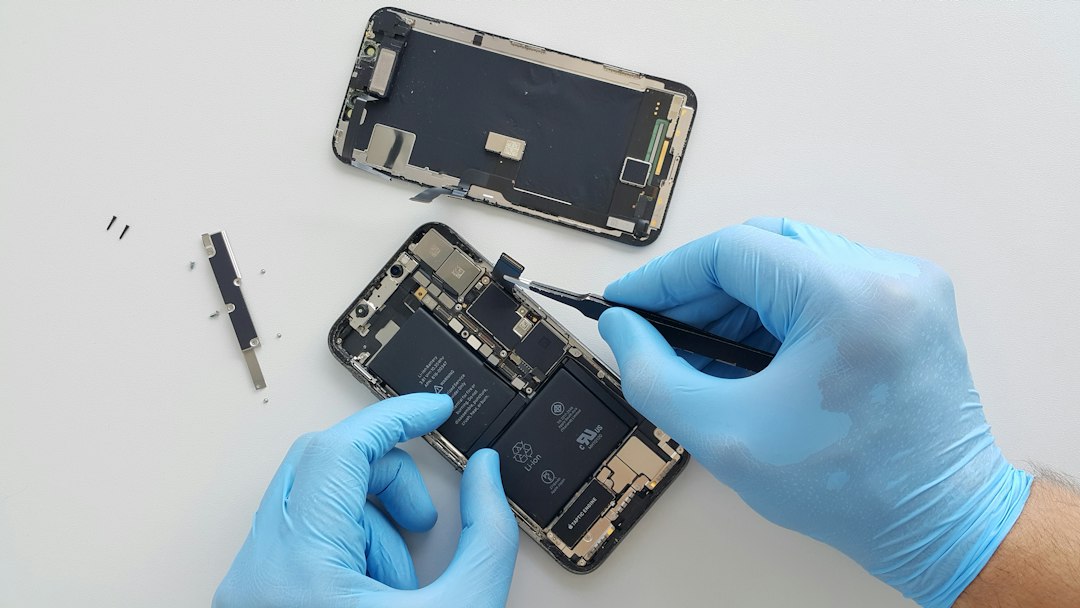
In these cases, book service with Apple or a trusted repair provider. If the phone is under warranty or AppleCare, avoid opening it yourself. Unauthorized repair can affect coverage.
Best Order for Safe Troubleshooting
Use this order to reduce risk:
- Force restart the iPhone.
- Charge it with a reliable cable and adapter.
- Connect to a computer and check whether Finder or iTunes detects it.
- Use Recovery Mode Update.
- Use Recovery Mode Restore only if you have a backup or accept data loss.
- Seek hardware service if software repair fails or damage is likely.
A white screen on iOS is stressful, but the decision is simple. Force restart is the safe first fix. Recovery Mode is the deeper software repair. If both fail, stop repeating the same steps and treat the issue as possible hardware damage.