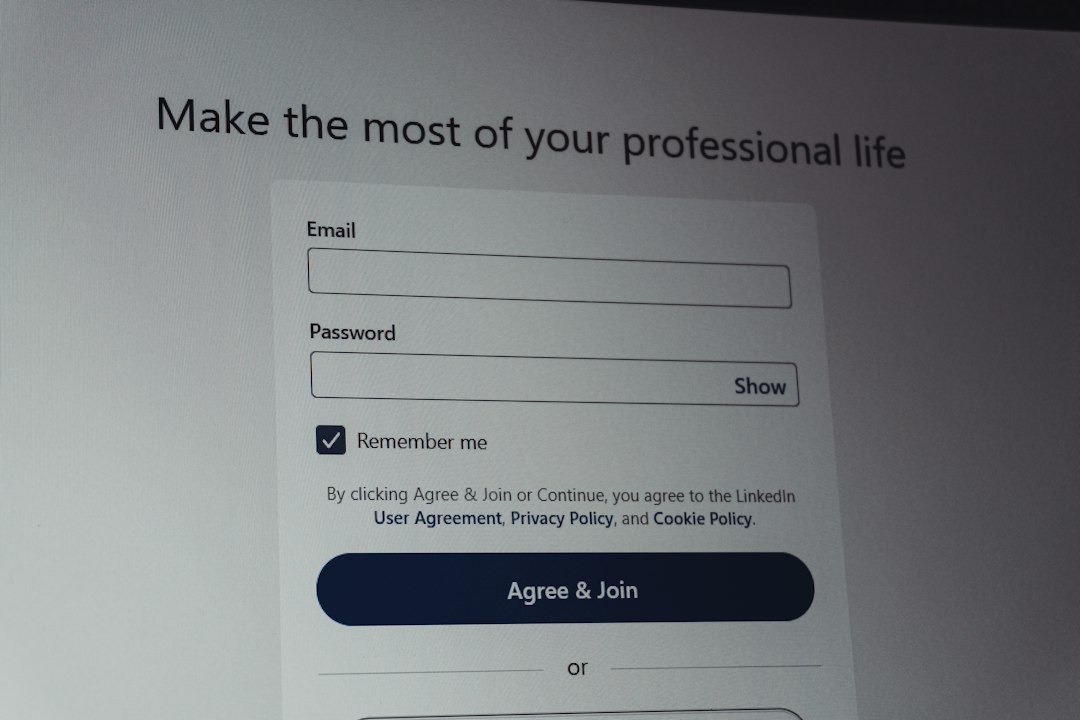
Use the official Sage Intacct sign in page, enter your company ID, user ID, and password, then complete any multi factor authentication prompt before opening your company workspace. If the login fails, check the basics first: the correct company ID, browser cache, saved passwords, MFA device, and account lock status. Most access problems come from small mismatches, not system failure.
TLDR: To access Sage Intacct, use your organization’s approved login link and sign in with your Company ID, User ID, and Password. If login fails, clear saved credentials, confirm MFA, and ask your admin to check whether your account is locked or inactive. For example, in a 40 person finance team, even a 10 minute login delay per user can cost more than 6 staff hours during close week. Start with the official URL and your admin before trying random fixes from search results.
How Sage Intacct Login Works
Sage Intacct is a cloud financial management platform. That means access happens through a secure online login page rather than installed desktop software. Your credentials are tied to your organization’s Sage Intacct company environment, permissions, and security rules.
In most cases, you need three pieces of information:
- Company ID: The unique ID for your organization’s Sage Intacct environment.
- User ID: Your assigned username, often created by an internal administrator.
- Password: Your private password, subject to your company’s security policy.
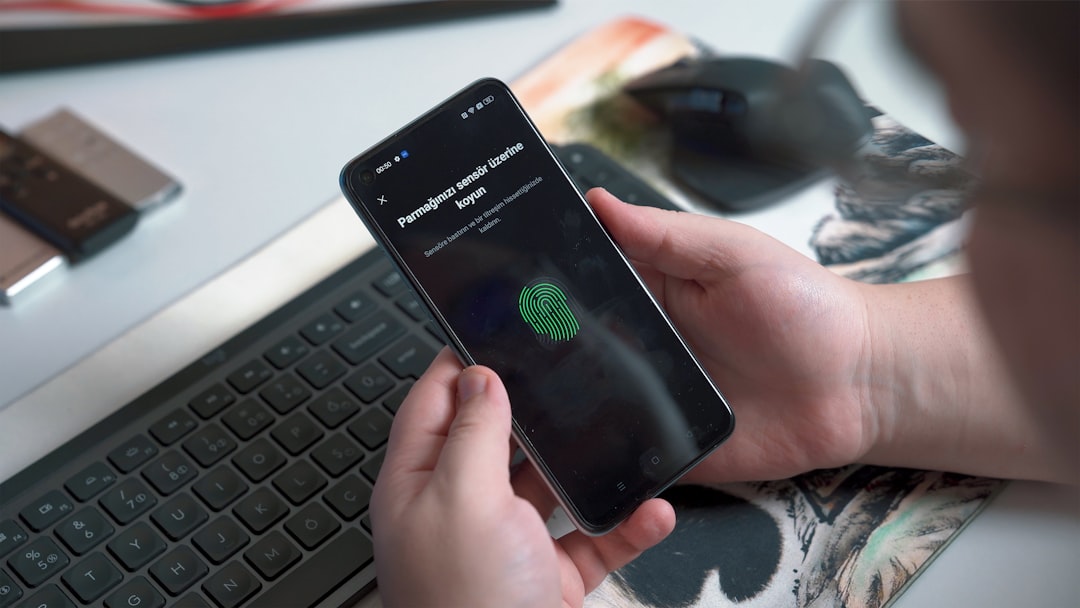
Some organizations also require multi factor authentication, often called MFA. This may involve an authenticator app, email code, text message, or single sign on through a corporate identity provider.

Step by Step: How to Access Sage Intacct
- Open the approved login link. Use the link supplied by your finance team, IT department, or Sage account administrator. Avoid clicking sponsored search results or unfamiliar links.
- Enter your Company ID. Type it exactly as provided. A wrong Company ID can make valid credentials appear invalid.
- Enter your User ID. Do not assume your email address is your User ID unless your administrator confirmed it.
- Enter your password. Check for Caps Lock, extra spaces, and browser autofill errors.
- Complete MFA if prompted. Approve the request or enter the code before it expires.
- Open the right entity or application area. Depending on your role, you may see dashboards, accounts payable, purchasing, reporting, or administration tools.
If your company uses single sign on, the process may look different. You may start from Okta, Microsoft Entra ID, Google Workspace, or another corporate access portal. In that case, your Sage Intacct password may not be separate. Your corporate password and MFA rules may control access.
Use the Correct Login URL
One of the most common problems is using the wrong page. It sounds basic, but it happens often. Old bookmarks, expired onboarding emails, and copied links from coworkers can point to outdated locations.
Use one of these safer methods:
- Open Sage Intacct from your company’s internal portal.
- Use the bookmark created by IT or your Sage Intacct administrator.
- Start from the official Sage website and choose the Sage Intacct sign in option.
- Ask your administrator to resend the current login link.
Honestly, it feels like a small URL issue should not burn 20 minutes of a close day, but it often does. A clean bookmark saves time and reduces security risk.
Common Sage Intacct Login Problems and Fixes
1. “Invalid Company ID, User ID, or Password”
This message does not always tell you which field is wrong. Check all three.
- Retype credentials manually instead of using autofill.
- Confirm the Company ID with your admin.
- Make sure there are no spaces before or after your User ID.
- Try a password reset if allowed by your company policy.
If the problem continues, your account may be inactive, locked, or assigned to the wrong company environment.
2. Forgot Password
If self service password reset is enabled, use the reset option on the login page. Follow the email instructions right away, since reset links may expire.
If you do not receive the email, check:
- Spam or quarantine folders.
- Whether your email address is tied to your Sage Intacct user profile.
- Whether your company blocks external system emails.
If your organization uses single sign on, reset your corporate password instead. Your Sage Intacct administrator or IT team can confirm which rule applies.
3. Account Locked
Too many failed login attempts can lock your account. This is a security control, not a bug. It protects financial data from repeated guessing attempts.
Ask your Sage Intacct administrator to unlock the account. If you keep getting locked out, remove saved passwords from your browser and password manager. A stale saved password can keep submitting bad credentials without you noticing.
4. MFA Code Not Working
MFA issues are especially frustrating because the password may be correct. Try these fixes:
- Check that your phone time is set to automatic.
- Use the newest code from your authenticator app.
- Make sure push notifications are not blocked.
- Confirm that you are using the device enrolled for Sage Intacct access.
- Ask your administrator to reset MFA if your phone was replaced.
5. Browser Problems
Sage Intacct runs in a browser, so local browser issues can block access. If the page loops, freezes, or does not load properly, try this sequence:
- Refresh the page.
- Open a private or incognito window.
- Clear cache and cookies for Sage Intacct.
- Disable browser extensions that alter scripts, cookies, or security settings.
- Try a supported browser such as Chrome, Edge, Firefox, or Safari.
It drives me crazy that one bad extension can add 30 seconds to every login attempt. Ad blockers, privacy tools, password helpers, and script blockers are common suspects.
6. Permission or Role Issues After Login
Sometimes login succeeds, but the user cannot see the expected menu, report, or entity. That is usually a permissions issue, not a login issue.
Contact your administrator with clear details:
- The screen or module you expected to access.
- The exact error message.
- The entity, department, location, or project involved.
- A screenshot, if company policy allows it.
Do not ask for broad access “to everything.” Finance systems need tight role control. Ask for the specific permission required for your job.
Security Tips for Sage Intacct Access
Sage Intacct contains sensitive financial records, vendor details, approvals, reports, and audit data. Treat access with care.
- Never share your password. Each user should have a separate account.
- Do not approve MFA prompts you did not start. Report unexpected prompts to IT.
- Use a trusted password manager. This reduces typo errors and weak passwords.
- Sign out on shared devices. Do not rely only on closing the browser tab.
- Review user access regularly. Remove old employees and outdated roles.
Administrators should also review login history and failed attempts. A sudden rise in failed logins may point to user training issues, expired passwords, or attempted unauthorized access.
When to Contact Your Sage Intacct Administrator
Contact your administrator when basic fixes do not work within a few minutes. Do not keep guessing passwords. That can create lockouts and slow the response.
Send a short, useful message such as:
“I cannot access Sage Intacct. My Company ID is accepted as far as I can tell, but I receive an invalid credentials message after entering my User ID. I tried a private browser window and removed saved passwords. Please check whether my account is active or locked.”
This gives the admin enough detail to act quickly. It also avoids vague back and forth messages during payroll, audits, or month end close.
Quick Login Checklist
- Use the official or company approved Sage Intacct login link.
- Confirm your Company ID and User ID.
- Type the password manually if autofill may be wrong.
- Check MFA device, code timing, and notifications.
- Try a private browser window.
- Clear cache and cookies if the page loops.
- Ask your admin to check account status and permissions.
A reliable Sage Intacct login process depends on accurate credentials, clean browser behavior, and clear internal support. Keep the official link bookmarked, protect your MFA device, and report repeated failures early. That simple routine can prevent avoidable delays when the finance team can least afford them.