Make a Facebook post shareable by setting its audience to Public; use Meta Business Suite when you want more people to see, schedule, track, and promote that post from a Page. Privacy settings control whether the Share button can work. Meta Business Suite helps improve reach, timing, and performance, but it cannot fix a post that is locked to Friends, a private group, or a restricted audience.
TLDR: If you are posting from a personal profile, change the post audience to Public before asking people to share it. If you manage a business Page, publish the post through Meta Business Suite so you can schedule it, review insights, and boost it if needed. For example, a local bakery that posts a public holiday menu at 8 a.m. and asks 15 staff and customers to share it may reach hundreds of extra people within the first hour, especially if each person has 300 to 500 friends. Privacy opens the door; Business Suite helps more people walk through it.
Facebook Privacy Settings: The First Thing to Check
If people cannot share your post, the problem is usually not the wording, image, or timing. It is usually the audience setting. Honestly, it feels like Facebook hides the most basic setting behind one extra tap too many, but this is still the first place to look.
For a personal profile, a post must usually be set to Public if you want broad sharing. If the audience is set to Friends, Friends except, Specific friends, or Only me, sharing will be limited or unavailable to many users.
- Public: Anyone on or off Facebook may be able to see and share the post.
- Friends: Your friends can see it, but sharing outside that circle is restricted.
- Specific friends: Only selected people can see it.
- Only me: No public sharing is possible.
To make a new profile post shareable, create the post, tap the audience selector near your name, choose Public, then publish. To change an existing post, open the post, select the three-dot menu, choose Edit audience, and switch it to Public.

What About Facebook Pages?
Posts from a Facebook Page are usually public by default. That is one reason businesses, charities, schools, clubs, and creators should use a Page rather than a personal profile for public updates.
A Page post is normally easier to share because it is built for public communication. Still, there are cases where sharing can be reduced. Age limits, country restrictions, unpublished Pages, copyrighted media, or platform policy issues can affect visibility.
If your Page post is not being shared, check these items:
- Page visibility: Confirm the Page is published.
- Audience restrictions: Review country and age settings.
- Post content: Avoid misleading claims, bait-style language, or restricted material.
- Media rights: Use images and music you have permission to publish.
- Button visibility: View the post from another account to see what regular users see.
Groups Are Different, and Often Annoying
Facebook Groups can be public or private, and that changes everything. A post in a Public group may be shareable outside the group. A post in a Private group usually cannot be shared publicly in the same way, even if the content seems harmless.
This drives people mad when they post an event flyer in a private community group and then wonder why nobody can share it. The fix is simple: post the flyer on a public Page first, then share that Page post into the group. People can then share the original Page post more easily.
Where Meta Business Suite Fits In
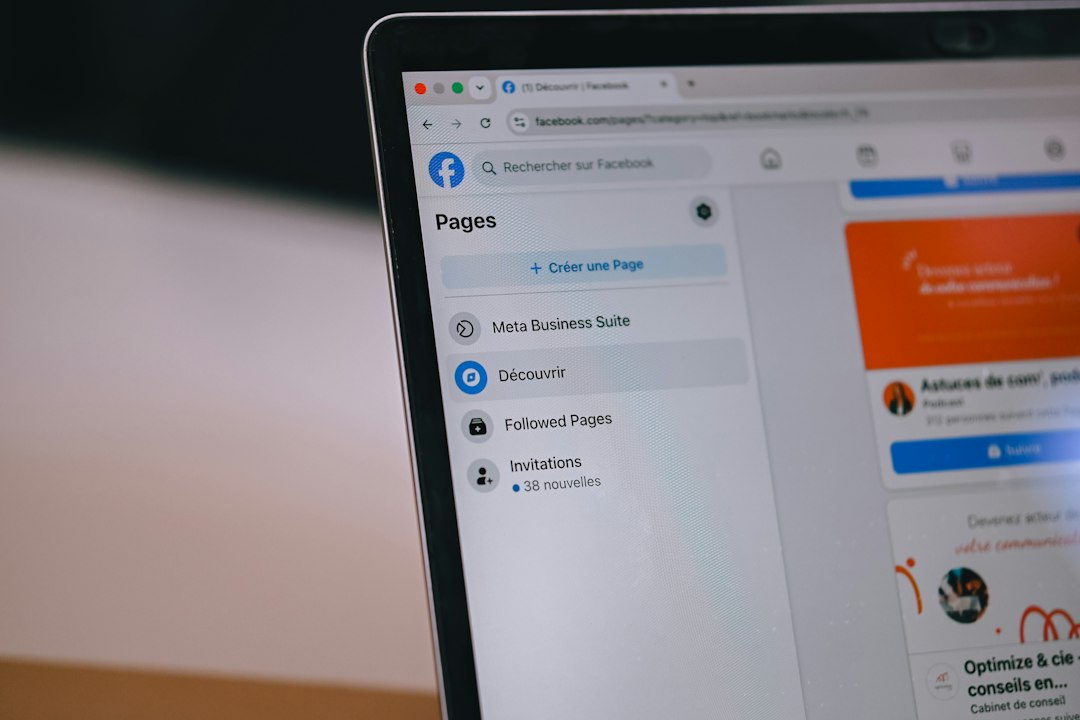
Meta Business Suite is not mainly a privacy tool. It is a publishing and management tool for Facebook Pages and Instagram professional accounts. It helps you plan better posts, publish at better times, respond to messages, review performance, and run ads.
Use Meta Business Suite when your goal is not just “Can people share this?” but “How do we get more people to share this?” That is a different question.
Business Suite can help with:
- Scheduling: Publish when your audience is most active.
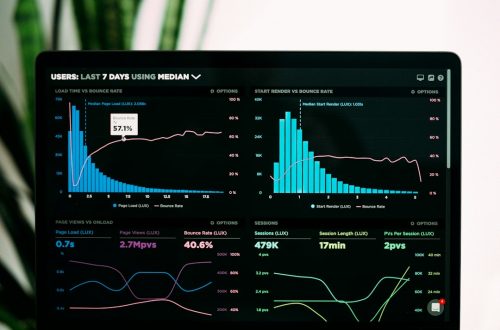
- Insights: See reach, reactions, comments, shares, and link clicks.
- Content planning: Keep campaigns consistent across Facebook and Instagram.
- Inbox management: Answer comments and messages faster.
- Ads: Put budget behind posts that already show strong engagement.
Expect to waste time if you try to use Business Suite to change the sharing rules on a personal post. It will not do that. It works best with Pages and professional accounts.
Privacy Settings vs Meta Business Suite
The difference is simple. Facebook privacy settings decide whether sharing is allowed. Meta Business Suite helps improve how well a public business post performs.
| Feature | Facebook Privacy Settings | Meta Business Suite |
|---|---|---|
| Main purpose | Control who can see and share a post | Manage, schedule, measure, and promote Page content |
| Best for | Personal profiles and individual post visibility | Businesses, creators, nonprofits, and teams |
| Can make a Friends-only post public? | Yes, if you own the post | No |
| Can increase post reach? | Only by allowing a wider audience | Yes, through timing, insights, and ads |
How to Increase Sharing Without Looking Desperate
A shareable post still needs a reason to be shared. People share posts that make them look helpful, informed, generous, amused, or connected to a cause. A plain announcement often falls flat.
Use these practical rules:
- Lead with the value: Say what people gain or why it matters in the first line.
- Add a clear request: “Please share this with parents in the area” works better than a vague hint.
- Use one strong image: Avoid cluttered flyers with tiny text.
- Keep the caption short: Two to five short lines often work better than a wall of text.
- Post the public source first: Use a Page post as the main version, then share it elsewhere.
- Reply quickly: Early comments can help keep a post active.
For example, a pet rescue might post: “We need foster homes for 12 dogs by Friday. Food and vet costs are covered. Please share with anyone within 30 miles of Springfield.” That is clear, specific, and easy to pass along.
A Simple Workflow That Works
For public campaigns, avoid posting first from a personal account. Start from the Page.
- Create the main post on your Facebook Page.
- Confirm the Page has no unnecessary age or country limits.
- Publish or schedule it in Meta Business Suite.
- Check the post live and confirm the Share button appears.
- Ask staff, partners, or supporters to share the Page post, not a screenshot.
- Review results after 24 hours: reach, shares, comments, and clicks.
- Boost only if the post is already getting positive engagement.
Common Mistakes to Avoid
Do not use a screenshot as the main content if you want clicks, calls, sign-ups, or map visits. Screenshots do not carry links well and often become blurry after people reshare them.
Do not post inside a private group first and expect public reach. Use a public Page post as the original source.
Do not boost every post. A weak post with paid reach is still weak. Watch early signals first. If a post gets strong saves, comments, and shares without paid spend, it is a better candidate for promotion.
Do not ask for shares in a manipulative way. Facebook has reduced the reach of spammy engagement bait in the past. A direct, honest request is safer: “Please share with local families who may need this.”
Bottom Line
If your only problem is that people cannot share a post, fix the privacy setting. Set the post to Public, or publish it from a public Page. If your problem is that not enough people are sharing it, use Meta Business Suite to plan the post, check performance, and promote it with care.
The strongest setup is simple: a public Page post, a clear reason to share, a strong visual, and fast follow-up in the comments. Privacy makes sharing possible. Good publishing practice makes sharing more likely.