Home networking can feel mysterious until you recognize the pattern behind the numbers. If you have ever opened Wi Fi settings, checked a printer configuration page, or typed an address into your browser to reach your router, you have probably seen something like 192.168.0.1, 192.168.0.100, or another 192.168.0.x address. These numbers are not random; they are part of a private addressing system used by millions of home and small office networks.
TLDR: Addresses in the 192.168.0.x range are private local IP addresses, commonly used by routers, computers, phones, printers, cameras, and smart home devices. The router is often found at 192.168.0.1, though some networks use a different address. To access your router, connect to the network, enter the router IP in a browser, and sign in with the admin credentials. If it does not work, check your device’s default gateway or reset the router only as a last resort.
What Does 192.168.0.x Mean?
The address range 192.168.0.x belongs to a larger block of private IP addresses. Private addresses are used inside local networks and are not directly reachable from the public internet. In a typical home, your router receives one public IP address from your internet provider, then creates a private network for your devices.
The “x” in 192.168.0.x represents the final number, which can usually be from 1 to 254. For example, your router might be 192.168.0.1, your laptop might be 192.168.0.23, and your printer might be 192.168.0.45. Each device needs a unique local IP address so the router knows where to send data.
Common 192.168.0.x IP Addresses
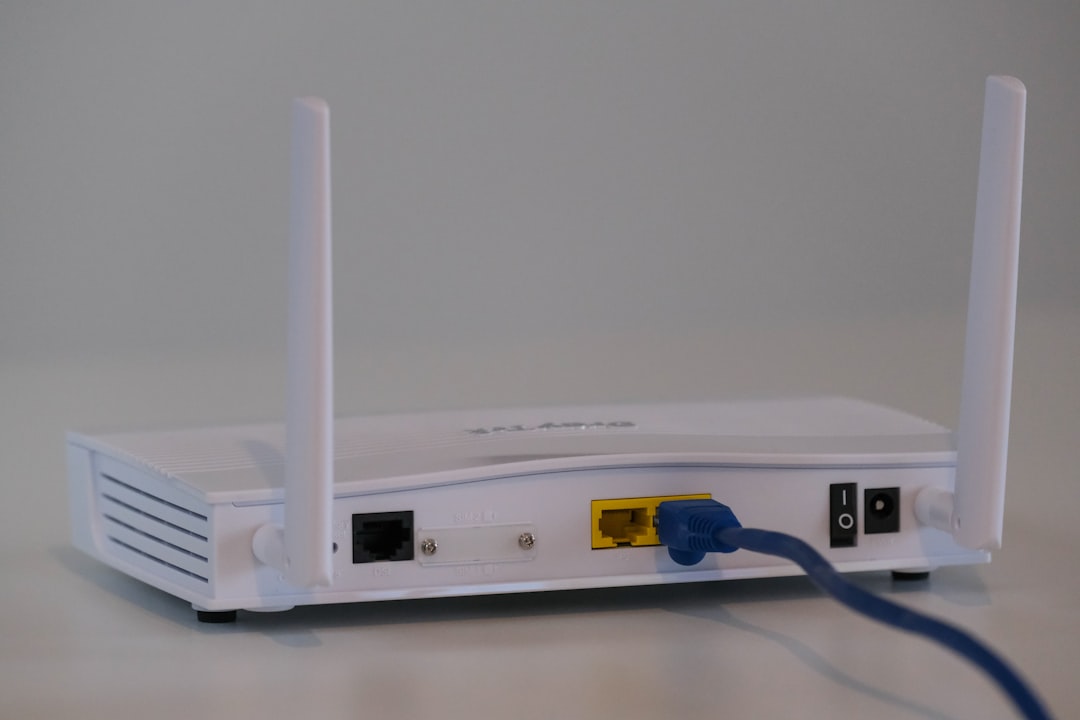
Although every network is configured a little differently, some addresses are used more often than others. Here are the most common examples and what they usually mean:
- 192.168.0.1: The most common router login address for many home routers. If you are trying to access your router settings, start here.
- 192.168.0.2: Sometimes used by a second router, Wi Fi extender, access point, or a manually assigned device.
- 192.168.0.10 to 192.168.0.99: Often used for devices with static IP addresses, such as printers, network storage, or security cameras.
- 192.168.0.100 and above: Frequently used by the router’s DHCP server, which automatically assigns IP addresses to phones, laptops, tablets, and other devices.
- 192.168.0.254: Sometimes used as a router, modem, or gateway address, especially on certain ISP supplied devices.
- 192.168.0.255: A broadcast address in many networks. It is not normally assigned to a device.
The exact range depends on the router’s DHCP settings. DHCP stands for Dynamic Host Configuration Protocol, which is the feature that hands out local IP addresses automatically. Without DHCP, you would need to configure every device by hand, which would be tedious and prone to errors.
Why Your Router Usually Uses 192.168.0.1
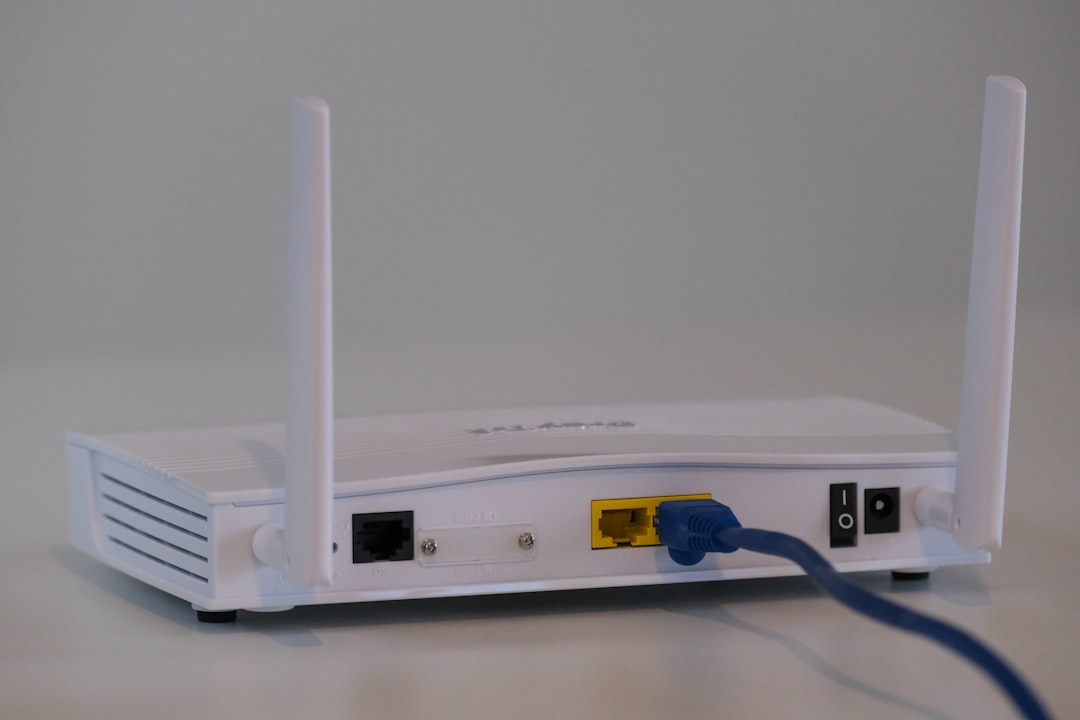
A router is the central traffic manager for your local network. It directs data between devices inside your home and forwards internet traffic to and from your service provider. Because it plays such an important role, it needs a predictable address that users and devices can find easily.
Manufacturers often choose 192.168.0.1 as the default gateway address. The default gateway is the device your computer contacts when it needs to reach anything outside the local network. If your laptop wants to load a website, it sends that request to the router first. The router then passes it along to the internet.
However, not all routers use 192.168.0.1. Some use 192.168.1.1, 10.0.0.1, or another private address. That is why checking your default gateway is the most reliable way to find your router.
How to Access Your Router
Accessing your router is usually simple, as long as you are connected to its network. You can connect by Wi Fi or by Ethernet cable. A wired connection is often more stable, especially if you are changing important settings.
- Connect to the network. Make sure your computer, phone, or tablet is connected to the router you want to manage.
- Open a web browser. Use Chrome, Edge, Firefox, Safari, or any modern browser.
- Type the router IP address into the address bar. Try http://192.168.0.1. Do not type it into a search engine box.
- Enter the admin username and password. These may be printed on a label on the router or listed in the manual.
- Change settings carefully. Once logged in, you can adjust Wi Fi names, passwords, security options, parental controls, port forwarding, and more.
How to Find Your Router IP Address
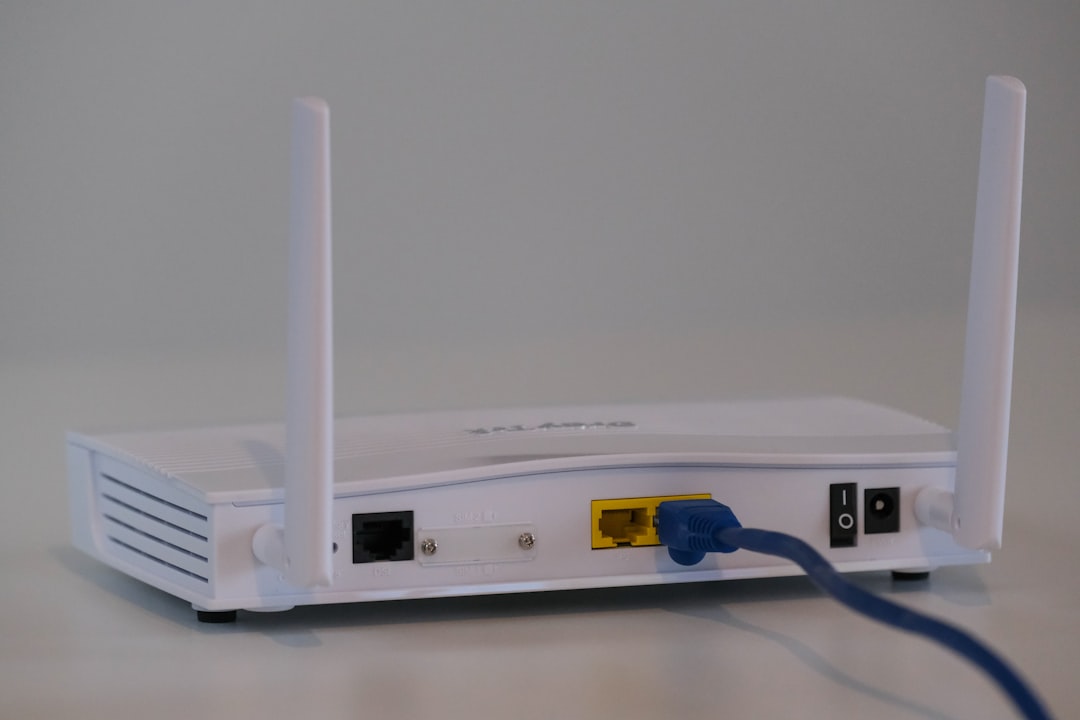
If 192.168.0.1 does not open the router login page, your router may be using a different address. Here is how to find it:
- On Windows: Open Command Prompt, type ipconfig, and press Enter. Look for Default Gateway.
- On macOS: Go to System Settings, open Network, select your connection, and look for the router or gateway address.
- On iPhone or iPad: Open Settings, tap Wi Fi, tap the information icon next to your network, and check the router field.
- On Android: Open Wi Fi settings, select the connected network, and look for gateway, router, or network details.
Once you find the gateway address, enter it directly into your browser. If the router interface is working normally, you should see a login screen.
What If You Cannot Log In?
Router login problems are common, but they are usually easy to troubleshoot. First, confirm that you are connected to the correct network. If you are using mobile data, a guest Wi Fi network, or a neighbor’s connection by mistake, the router page will not load.
Next, try both http://192.168.0.1 and https://192.168.0.1. Some routers use encrypted login pages, while older ones may not. If the page still does not load, restart the router and try again after a minute or two.
If the login page appears but the username or password fails, check the label on the router. Many devices have unique default credentials printed on them. If someone changed the admin password and you do not know it, you may need to perform a factory reset. Be careful: a reset usually erases Wi Fi names, passwords, ISP settings, and custom configurations.
Useful Settings Inside the Router
Once inside your router’s admin panel, several settings are worth reviewing. The most important is your Wi Fi password. Use a strong password that is not shared with other accounts. You should also choose modern encryption, preferably WPA2 or WPA3 if available.
Other useful areas include:
- Connected devices: See which phones, computers, cameras, and smart devices are currently on your network.
- Guest network: Create a separate Wi Fi network for visitors.
- Firmware updates: Install router updates that fix bugs and security issues.
- DHCP settings: Adjust the range of automatically assigned IP addresses.
- Parental controls: Manage access schedules or block certain categories of content.
Static vs Dynamic IP Addresses
Most devices receive dynamic IP addresses from the router. This means the address can change over time. For everyday devices such as phones and laptops, that is usually fine.
A static IP address stays the same. Static addresses are useful for printers, cameras, game consoles, media servers, and network attached storage. For example, assigning a printer 192.168.0.50 can make it easier for computers to find it consistently. Just make sure static addresses do not conflict with the DHCP range, or two devices could accidentally try to use the same IP.
Final Thoughts
The 192.168.0.x range is one of the most familiar parts of home networking, even if many people never notice it. Understanding what these addresses do can help you fix connection problems, secure your Wi Fi, set up printers, manage smart devices, and access your router with confidence.
If you remember only one thing, remember this: 192.168.0.1 is commonly your router, but the true address is whatever your device lists as the default gateway. Once you know how to find that gateway, you have the key to managing your local network.