ANSI text looks like magic in a terminal. It can glow. It can blink. It can paint robots, logos, dashboards, and wild old school art with tiny text symbols. But there is one catch. Not every browser, chat app, or editor knows how to show ANSI colors correctly. That is where online ANSI text viewers and terminal rendering tools save the day.
TLDR: Use an ANSI viewer when you need to preview colored terminal output fast. Use a terminal renderer when you want to turn that output into clean HTML, SVG, GIF, or video. For example, a support team with 25 agents could paste error logs into an ANSI viewer and cut debugging time by 30% because color warnings stay visible. If you record terminal demos, tools like asciinema, Terminalizer, and xterm.js are the fun ones to try first.
What Is ANSI Text?
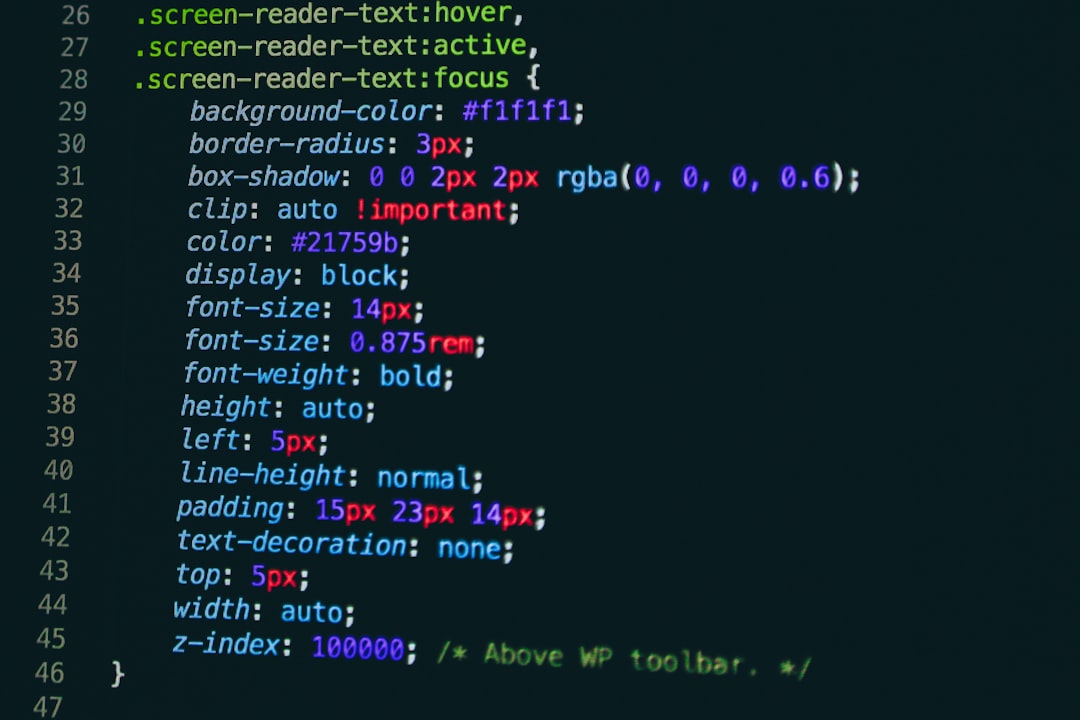
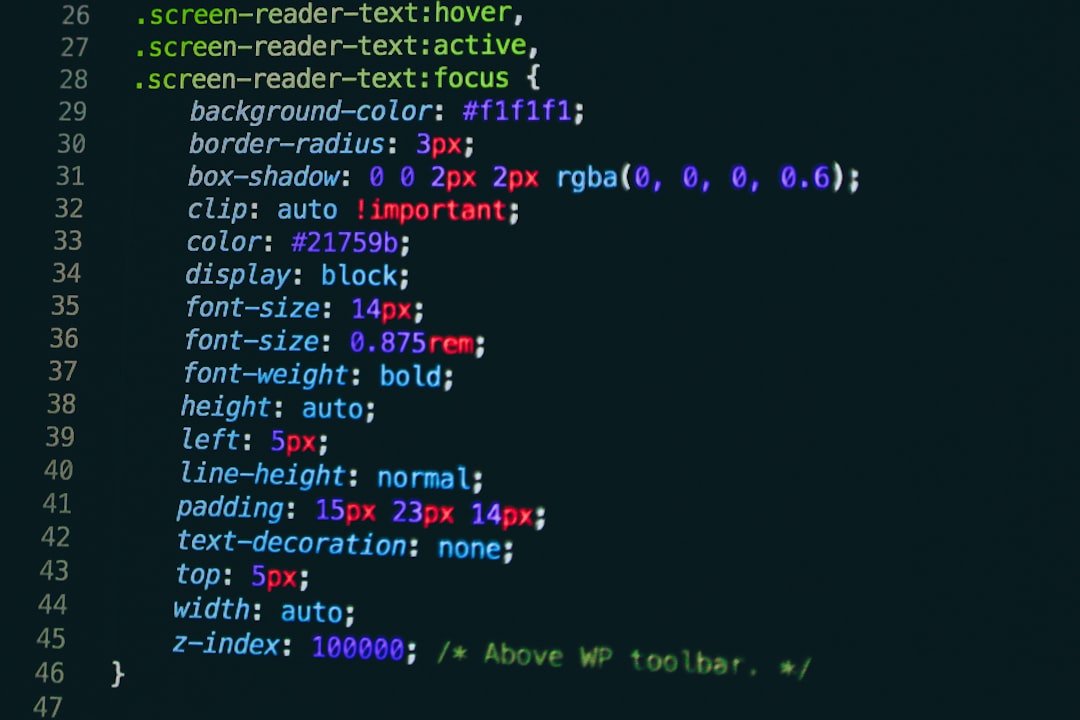
ANSI text is plain text with secret style codes inside it. These codes tell a terminal what to do. They can change text color. They can move the cursor. They can clear the screen. They can make a boring log look like a tiny control room.
For example, a command line app may print success messages in green. It may print errors in red. Your terminal understands those color codes. A normal web page may not. It may show strange characters instead, like [31m or [0m. Not cute.
That is why ANSI viewers matter. They read those codes. Then they show the text as it was meant to look.
Why Use an Online ANSI Viewer?
An online ANSI viewer is quick. You paste text. You see color. Done.
It is useful when you have:
- Build logs from CI tools.
- Error traces from servers.
- CLI app output with colors.
- ANSI art from old BBS files.
- Test results from tools like Jest, Pytest, or Mocha.
It also helps when you want to share output with someone who does not have your terminal setup. That person may be on a phone. Or in a browser. Or using a tool that eats colors for breakfast.
1. ANSI Love
ANSI Love is a classic choice for ANSI art fans. It converts old ANSI and ASCII files into images. It is great for retro art. It is also friendly for people who enjoy 90s computer vibes.
It supports formats like ANSI, ASCII, PCBoard, and more. The results can be exported as PNG. That makes it handy for archives, galleries, or museum style projects.
Best for: retro ANSI art, file conversion, image export.
Not best for: live terminal playback or interactive output.
2. ansi-to-html
ansi-to-html is a popular library for turning ANSI escape codes into HTML. It is not always used as a public website. But many web tools use this kind of engine behind the scenes.
It is excellent if you are building your own viewer. You can feed it colored terminal output. It returns browser ready HTML. This is perfect for dashboards, log panels, admin pages, and bug reports.
Best for: developers who want to embed terminal output in websites.
Fun idea: Add it to an internal bug tracker. Then your team can see red errors and yellow warnings without opening a terminal.
3. xterm.js
xterm.js is a full terminal emulator for the browser. It is more powerful than a simple viewer. It can render real terminal behavior. It supports colors, cursor movement, resizing, and interactive input.
You may have seen it in cloud IDEs. You may have used it in browser based servers. It feels like a terminal because it almost is one.
Best for: web terminals, remote shells, cloud coding tools, interactive apps.
Not best for: people who only need to paste one colored log.

4. asciinema
asciinema is a lovely tool for recording terminal sessions. It does not record a heavy video. Instead, it records terminal text and timing. That makes files small. It also makes playback smooth.
You can pause. You can copy text from the recording. That is a huge win over normal videos. If you teach command line skills, this tool is a gem.
Best for: tutorials, command demos, bug reproduction, training material.
Example: A DevOps teacher records a 3 minute deployment demo. Students can replay it and copy each command. No squinting at blurry video. Nice.
5. Terminalizer
Terminalizer records your terminal and exports the result as an animated GIF. It is great for README files. It is also great for launch pages and product demos.
GIFs are easy to share. They work almost everywhere. They show motion without asking people to press play.
Best for: GitHub demos, quick previews, small product walkthroughs.
Small warning: GIF files can grow fast. Keep demos short. Trim the boring parts. Your viewers will thank you.
6. SVG Term
SVG Term can turn terminal recordings into SVG animations. SVG is crisp. It scales well. It looks sharp on retina screens.
This is useful when you want a clean terminal demo on a website. It can look better than a fuzzy GIF. It can also be lighter in some cases.
Best for: polished docs, landing pages, technical blogs.
7. aha
aha means ANSI HTML Adapter. It is a small command line tool. It converts ANSI colored text into HTML.
It is simple and dependable. You can use it in scripts. You can pipe command output into it. Then you can save the result as an HTML file.
Best for: automated reports, CI logs, simple conversions.
Example command style: Run tests, pipe the colored output through aha, then publish the HTML as a build artifact.
How to Pick the Right Tool
Do not overthink it. Ask one question first:
Do you need to view, convert, record, or interact?
- View: Choose a simple online ANSI viewer.
- Convert: Use ansi-to-html, ANSI Love, or aha.
- Record: Try asciinema, Terminalizer, or SVG Term.
- Interact: Use xterm.js.
If your file is old ANSI art, use a retro focused tool. If your file is a modern log, use an ANSI to HTML tool. If your goal is teaching, record the terminal. If your goal is a browser based shell, go with a real emulator.
Features That Matter
Good ANSI tools share a few traits. Look for these before you commit:
- True color support: 16 colors are fine. 256 colors are better. 24 bit color is best.
- Clean HTML output: This helps when you embed logs in pages.
- Copyable text: Users should be able to copy commands.
- Dark and light themes: Eyes are picky. Give them options.
- Safe rendering: Logs can contain weird content. Good tools escape risky HTML.
- Export options: PNG, SVG, GIF, and HTML are all useful.
Common Mistakes
The first mistake is sharing raw ANSI codes in chat. It often looks broken. People see code soup. Sad soup.
The second mistake is using screenshots for everything. Screenshots are easy. But they are not searchable. They are not copyable. They can be blurry.
The third mistake is recording a giant 20 minute terminal video. Please do not. Keep demos short. A 45 second clip is often enough.
Best Simple Workflow
Here is a simple workflow for most people:
- Run your terminal command.
- Save the colored output.
- Paste it into an ANSI viewer.
- Check that colors look right.
- Export as HTML, SVG, PNG, or GIF.
- Share it in docs, tickets, or tutorials.
This keeps the useful colors. It also keeps the message clear. Red still means danger. Green still means success. Yellow still means “please look at me.”
Final Pick
If you want the easiest start, use a basic online ANSI viewer. If you build tools, use ansi-to-html or xterm.js. If you teach, use asciinema. If you want a flashy README, use Terminalizer or SVG Term. If you love retro art, use ANSI Love.
ANSI text may be old, but it is not boring. It is tiny, colorful, and clever. With the right viewer or renderer, your terminal output can become a neat report, a helpful demo, or a piece of pixel style art. That is a pretty good trick for plain text.