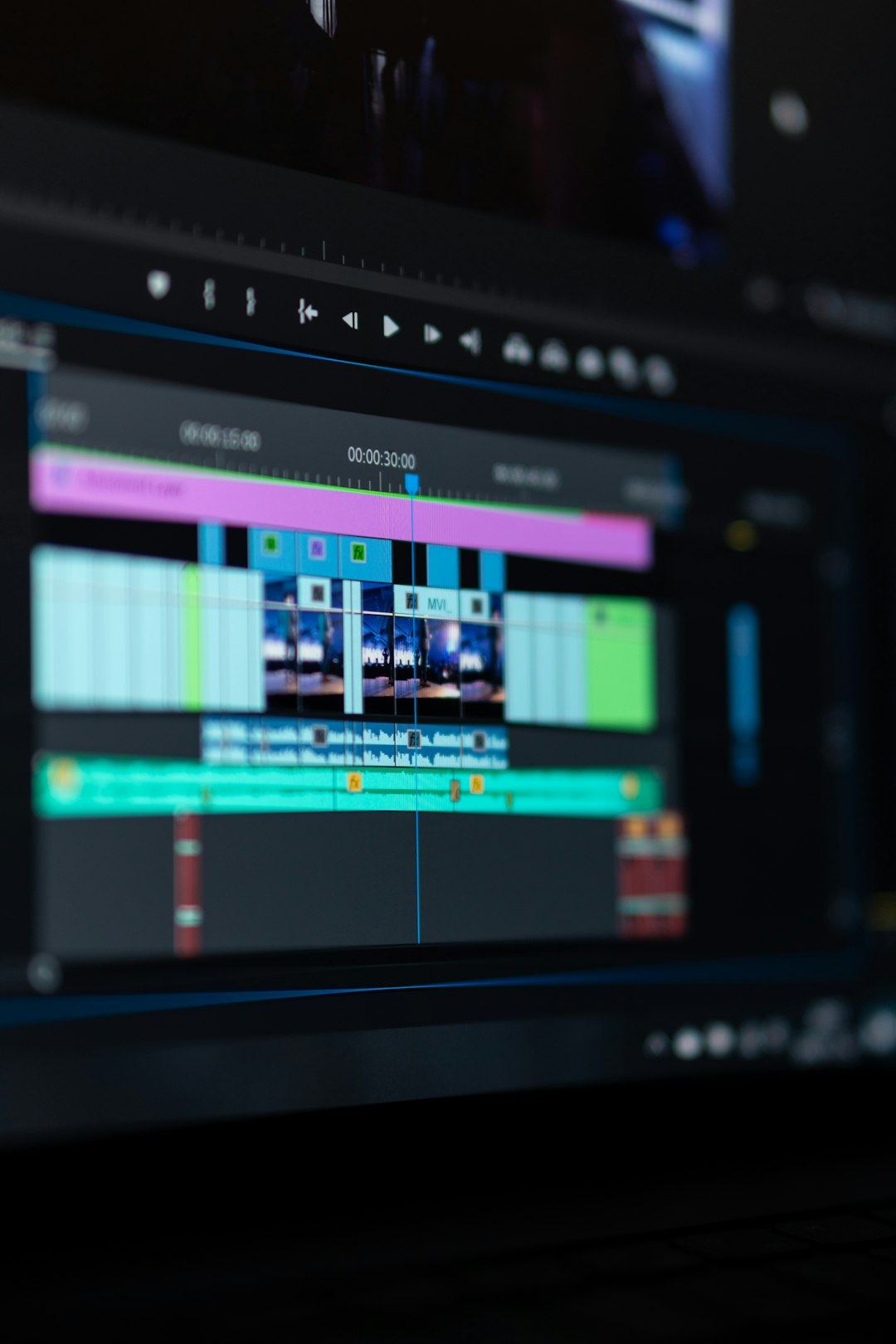
A dolly zoom is the “wait, why is the room stretching?” camera trick. The camera moves forward or backward while the lens zooms the opposite way. The subject stays about the same size. The background bends, grows, or collapses. Alfred Hitchcock made it famous in Vertigo in 1958 [source: Britannica]. That is why many people call it the Vertigo effect.
TLDR: A dolly zoom makes a shot feel strange by mixing camera movement with opposite lens zoom. For example, your actor stays centered while the hallway behind them seems to rush away. In a simple 10 second shot, you might push the camera from 12 feet to 6 feet while changing the zoom from 35mm to 70mm. Adobe Premiere Pro is easier for quick edits, while DaVinci Resolve is better if you want stronger color and tighter finishing tools.
What Is a Dolly Zoom?
A dolly zoom is a camera move with a visual trick baked in.
You do two things at once:
- Move the camera toward or away from the subject.
- Zoom the lens in the opposite direction.
If the camera moves forward, you zoom out.
If the camera moves backward, you zoom in.
That is the basic magic.
The subject stays close to the same size in the frame. But the background changes a lot. It may feel like space is shrinking. Or expanding. Or having a tiny panic attack.
This effect is great for fear, shock, panic, guilt, and sudden realization. It says, “Something just went very wrong,” without a character saying a word.
Image not found in postmetaWhy Does the Vertigo Effect Feel So Weird?
Your brain expects normal motion.
When a camera moves forward, nearby objects should grow bigger. Far objects should shift too. That feels natural.
But a dolly zoom breaks that rule. The camera move and lens zoom fight each other. Your subject stays steady. The room does not.
So your eyes say, “That person is still.”
Your brain says, “Nope. The world is melting.”
That mismatch creates the creepy feeling.
Can You Create a Dolly Zoom Without Shooting It?
Yes. Sort of.
The best dolly zoom happens in camera. You move the camera and zoom the lens during the shot. That gives the most natural depth shift.
But you can fake it in editing software.
This works best when:
- Your footage is shot in 4K or higher.
- Your final video is 1080p.
- Your subject is centered.
- The background has strong lines, like a hallway or street.
- The camera already moves a little.
Why does resolution matter? Simple. If you zoom digitally, you crop the image. A 4K clip gives you room to crop without making the shot look like mashed potatoes.
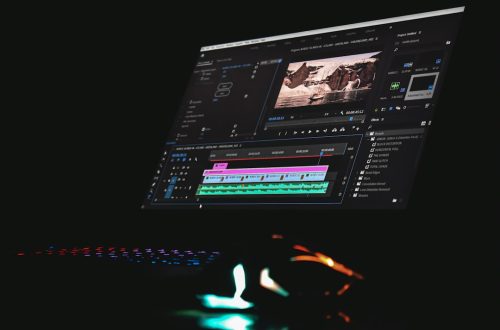
Premiere Pro: Fast, Familiar, and a Little Fussy
Adobe Premiere Pro is often the faster choice for a fake dolly zoom.
You can do it with simple keyframes.
- Place your clip on the timeline.
- Select the clip.
- Open Effect Controls.
- Set a keyframe for Scale at the start.
- Move to the end of the shot.
- Change Scale up or down.
- Adjust Position so the subject stays centered.
If your camera is moving forward, scale down over time. If your camera is moving backward, scale up over time.
That creates the fake push and pull.
Honestly, it feels like Premiere hides nothing but still makes tiny adjustments annoying. You nudge the position. Then the face drifts. Then you fix the face. Then the top of the frame looks odd. Cool. Great. Another 30 seconds gone.
Still, Premiere is good for this effect because it is direct. Keyframes are easy to see. The timeline is friendly. Most editors know where everything lives.
Premiere Pro Pros
- Quick setup. Scale and Position are easy to keyframe.
- Great for social videos. Fast work matters.
- Easy nesting. You can stack effects without much pain.
- Good tutorials everywhere. If you get stuck, help is close.
Premiere Pro Cons
- Motion may feel flat. Digital zoom cannot fully copy real lens depth.
- Keyframe easing can be fiddly. The graph controls are not fun for beginners.
- Stabilization can fight the effect. Warp Stabilizer may make the shot wobble.
DaVinci Resolve: Cleaner Finish, More Control
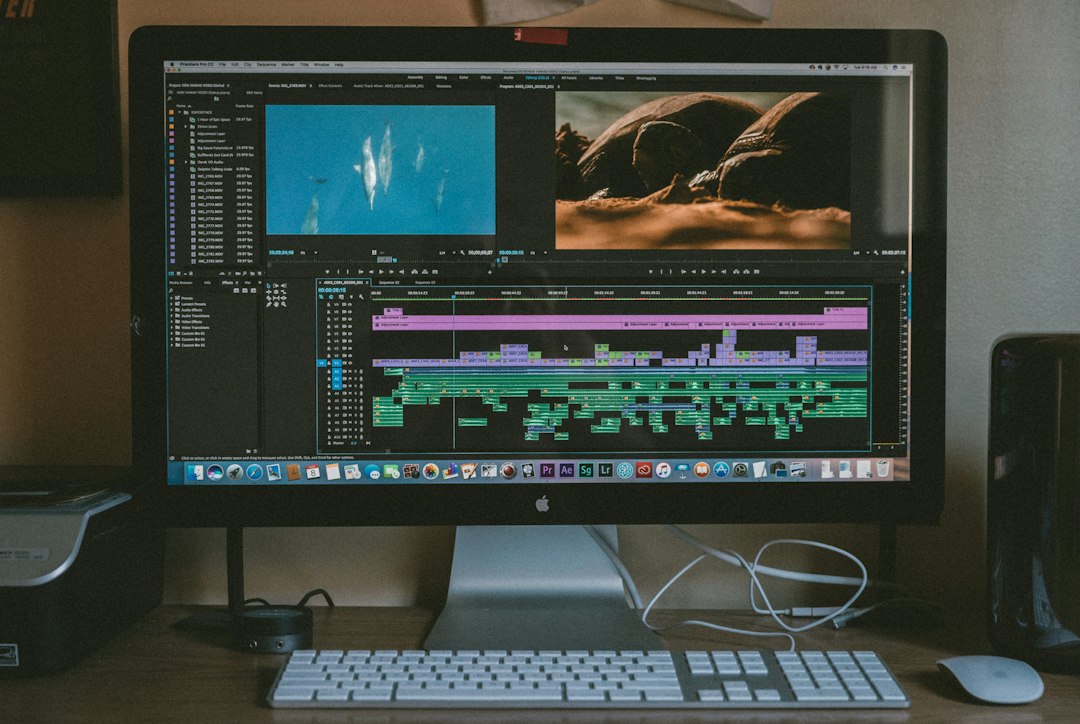
DaVinci Resolve can also create the Vertigo effect with keyframes.
The basic steps are similar.
- Add the clip to the timeline.
- Open the Inspector.
- Keyframe Zoom at the start.
- Move to the end.
- Change the Zoom value.
- Keyframe Position X and Position Y if needed.
Resolve also has strong tools for color, tracking, and finishing. That helps a lot. A dolly zoom often needs polish. You may need to darken the edges. Add contrast. Track the face. Mask a messy crop.
This is where Resolve feels strong.
It can be slower to learn. The interface has pages. Edit page. Color page. Fusion page. Fairlight page. Cut page. It can feel like you opened five apps by mistake.
It drives me crazy that a simple idea can turn into tab hopping. You want one creepy zoom. Suddenly you are checking the Inspector, spline curve, and Color page like you are defusing a bomb.
But once you get it, Resolve is powerful.
DaVinci Resolve Pros
- Excellent color tools. Great for mood and tension.
- Strong tracking. Helpful if your subject drifts.
- Smooth finishing. You can refine the shot deeply.
- Free version is very capable. Many users can start without paying.
DaVinci Resolve Cons
- More learning time. It has many panels and pages.
- Simple edits can feel heavy. One small effect may take more clicks.
- Fusion can scare people. It is powerful, but not gentle.
Which One Is Better for the Vertigo Effect?
Use Premiere Pro if you want speed.
Use DaVinci Resolve if you want polish.
That is the cleanest answer.
For a YouTube Short, TikTok, Reel, wedding film, or quick client edit, Premiere is usually easier. You can keyframe Scale fast. You can adjust Position fast. You can export fast.
For a short film, music video, thriller scene, or color-heavy project, Resolve may be better. It gives you more room to shape the image. The fake dolly zoom can look more cinematic after grading.
| Need | Better Pick |
|---|---|
| Fast social clip | Premiere Pro |
| Cinematic color | DaVinci Resolve |
| Simple fake zoom | Premiere Pro |
| Tracking and masks | DaVinci Resolve |
| Beginner comfort | Premiere Pro |
| Advanced finishing | DaVinci Resolve |
How to Make the Effect Look Better
Do not just zoom and hope.
Try these simple fixes:
- Keep the subject locked. The face should stay in nearly the same spot.
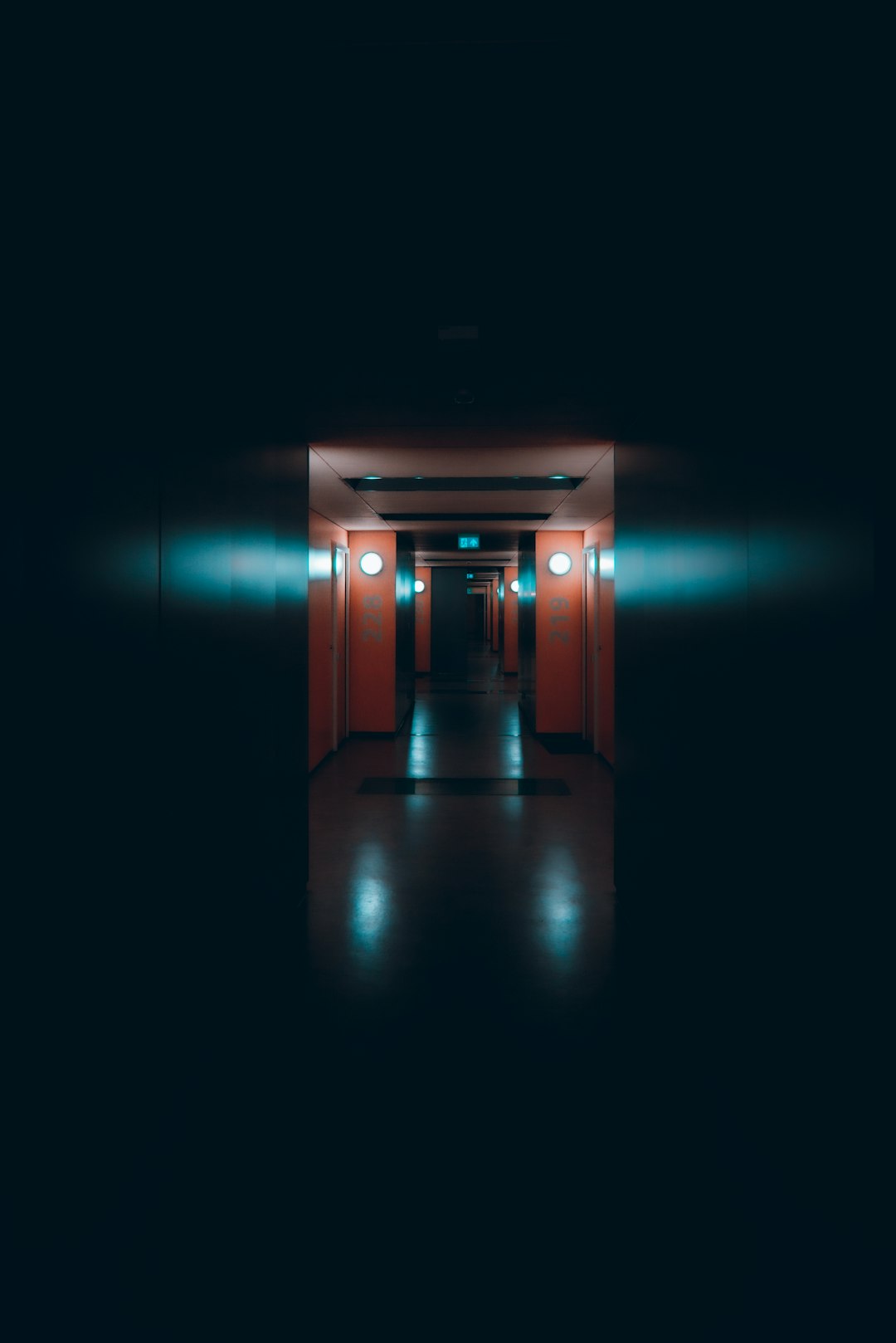
- Use a clear background. Hallways, roads, shelves, and stairs work well.
- Add slight easing. Linear motion can look robotic.
- Cut before it gets ugly. A 2 to 5 second effect is often enough.
- Add sound. A low boom or rising tone sells the fear.
- Use blur with care. Too much blur screams “cheap effect.”
Real Dolly Zoom vs. Fake Dolly Zoom
A real dolly zoom wins when you can shoot it.
It has true depth. The lens compression changes for real. The background shift feels richer.
A fake dolly zoom is still useful. It is great when the shot is already filmed. It is also safer for small teams. No track. No zoom lens operator. No repeated takes while someone trips over a cable.
If you are planning a shoot, do it in camera. If you are fixing footage later, use Premiere or Resolve.
Final Pick
Premiere Pro is the best choice for most quick dolly zoom edits. It is simple. It is fast. It gets the job done.
DaVinci Resolve is the better choice when the shot needs serious polish. Use it when color, tracking, masks, and final mood matter more than speed.
The dolly zoom is not just a trick. It is a feeling. Use it when your character realizes the monster is real, the secret is out, or the floor has emotionally left the building.